Offering return transfers
Let guests book the journey back in the same booking, with an optional return discount. This guide shows how to set up a return trip on any transfer, step by step.
Where to start
Open the transfer experience, go to the Dates & Prices tab, and find the option you want to offer a return for (for example "Transfer from Airport to City Hotel"). Each option card has a Add a return trip button with the note "Let guests book the journey back, too."
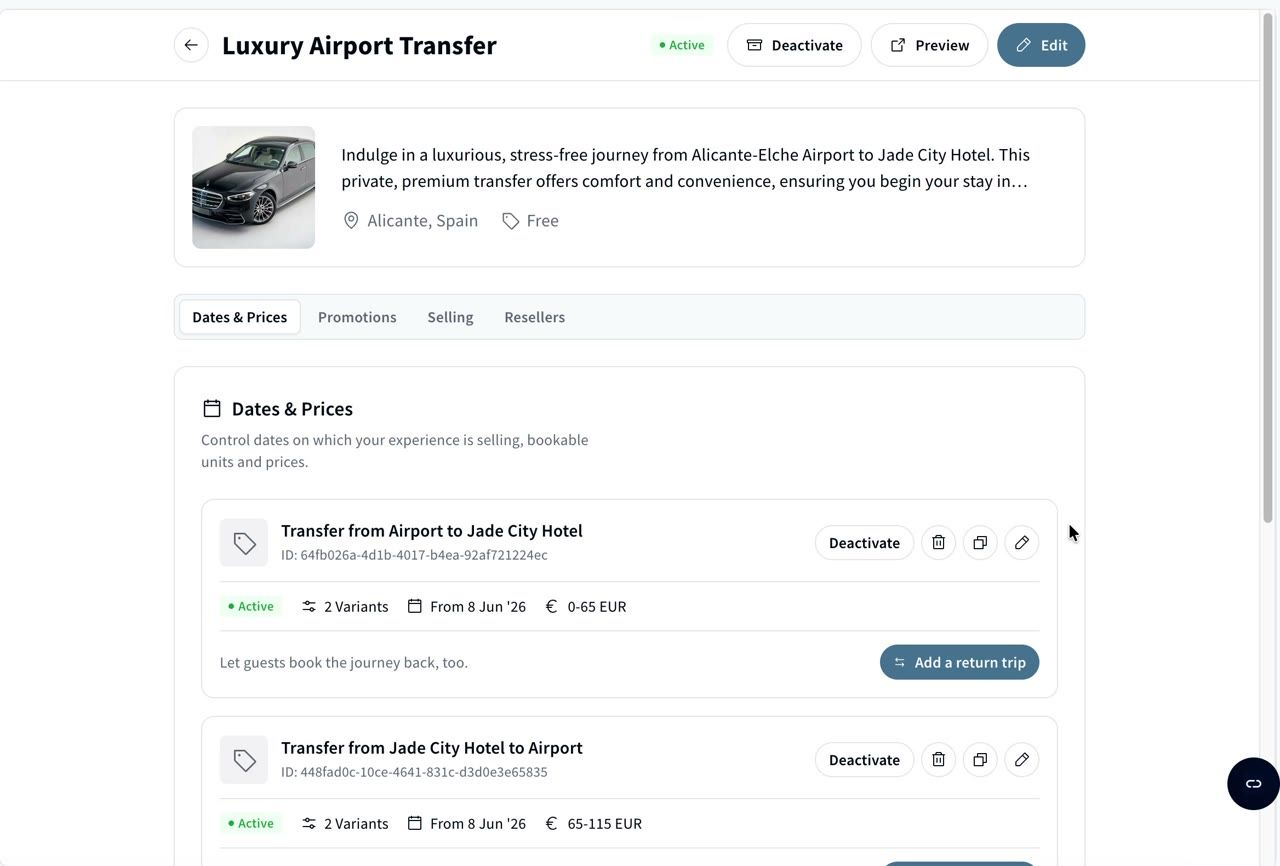 Every transfer option card has an Add a return trip button.
Clicking it opens the Enable return trips setup, which has three steps: Opposite option, Pickups & vehicles, and Discount & summary.
💡 What is an "opposite option"? A return trip is just a second option that runs in the other direction. Turneo links the two so guests can book both in one go, and keeps them as two separate bookings behind the scenes.
1️⃣ Choose how to create the return option
You have three ways to set up the opposite direction:
Copy this option (recommended) — copies your starting option and lets you adjust it. Fastest if the return runs on similar terms.
Create a new option — starts from a blank option creator.
Use an existing option — if you already have an option for the return leg, link it instead of building a new one.
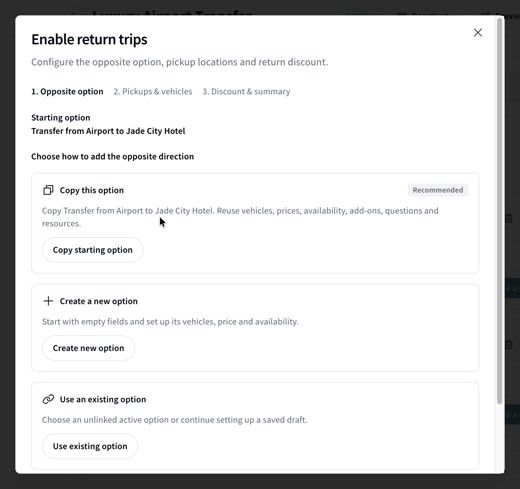 Choose Copy, Create new, or Use existing.
If you copy the option
Turneo opens the option creator with a draft of the opposite option. The pricing, availability, time slots, add-ons, and guest questions all carry over, so you only change what's different.
The first thing to do is check the name. The copy gets a default name starting with "Return ·", so change it to something guests will understand, for example "Return transfer from Airport to City Hotel".
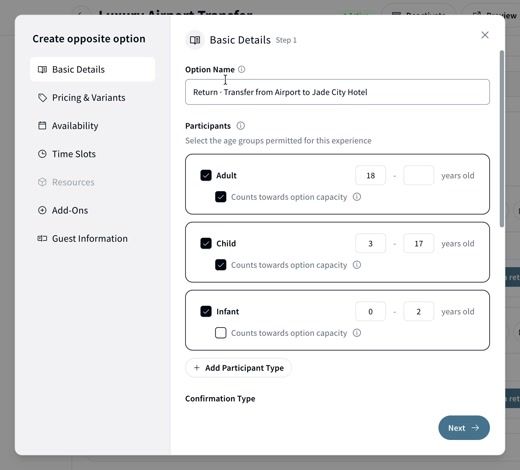 The copy opens in the option creator. Start by renaming it.
Then adjust anything that should differ on the way back. For example, if the minivan costs a different amount for the return, change it in Pricing & Variants.
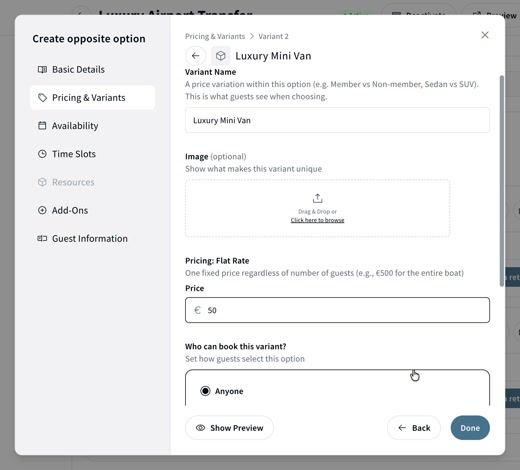 Change prices, time slots, or add-ons only where the return differs.
When you're happy with it, click Save draft & continue to move on to the pickups.
💡 Check the name before you continue. Guests see this name when they choose their transfer.
If you create a new option or use an existing one
With Create a new option, you go through the same option creator, starting from scratch. With Use an existing option, pick the option from the Opposite option dropdown instead of creating one. You still match pickups and vehicles and choose a discount in the next steps.
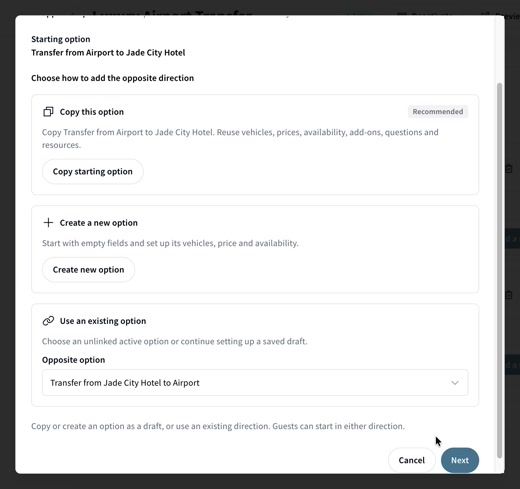 Pick an option you already have from the dropdown.
2️⃣ Pickups & vehicles
This step makes sure each direction has the right pickup points and that the vehicles line up.
Pickup points. Each direction has its own list. Select the pickup point that applies to that leg: for an airport-to-hotel trip the pickup is the airport, and for the way back it's the hotel. If you need a new one, click Add pickup point and fill in the name, address, city, country, and location notes (for example "At the departures").
You can also tick Guest enters an address instead if guests should type in where they want to be picked up, or offer different pickup points so guests can be collected somewhere else in the city.
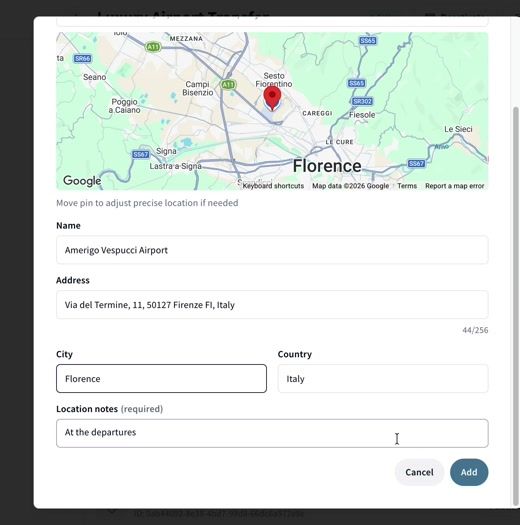 Add a pickup point with its address and a location note for the driver.
Match vehicle types. For each variant in the first option, choose the matching variant in the return option, so a Luxury Sedan is paired with the return Luxury Sedan, and a Luxury Mini Van with the return Mini Van. You need at least one matching vehicle to continue.
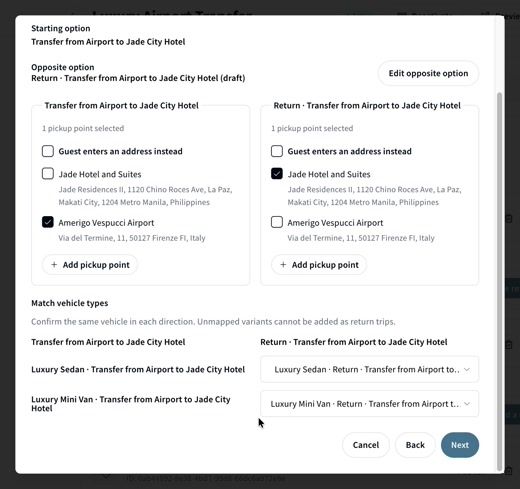 Select a pickup for each direction and match the vehicles one to one.
⚠️ Unmatched variants can't be added as a return. If a vehicle isn't paired, guests who pick it won't see the return trip option.
3️⃣ Discount & summary
This is new: you can reward guests who book both directions with a return discount built right into the experience. Before, you would have had to change the price by hand.
Choose one of three options:
No discount
Fixed amount (EUR) — takes a set amount off the return trip.
Percentage — takes a percentage off the return trip.
The discount applies to the second trip. The summary underneath shows the old and new price for each vehicle, so you can check the numbers before you go live. Add-ons are charged in full.
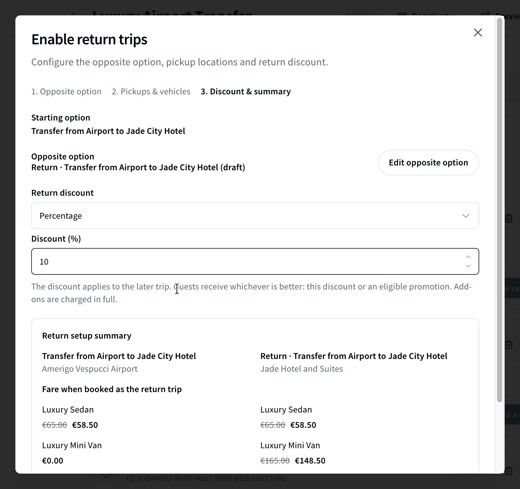 A 10% return discount, with the new price shown next to the original.
When everything looks right, click Activate option & enable return trips.
What you'll see afterwards
Back in Dates & Prices, the two options now appear linked, with a short summary of the setup (for example "2 vehicle mappings · 10.00% return discount").
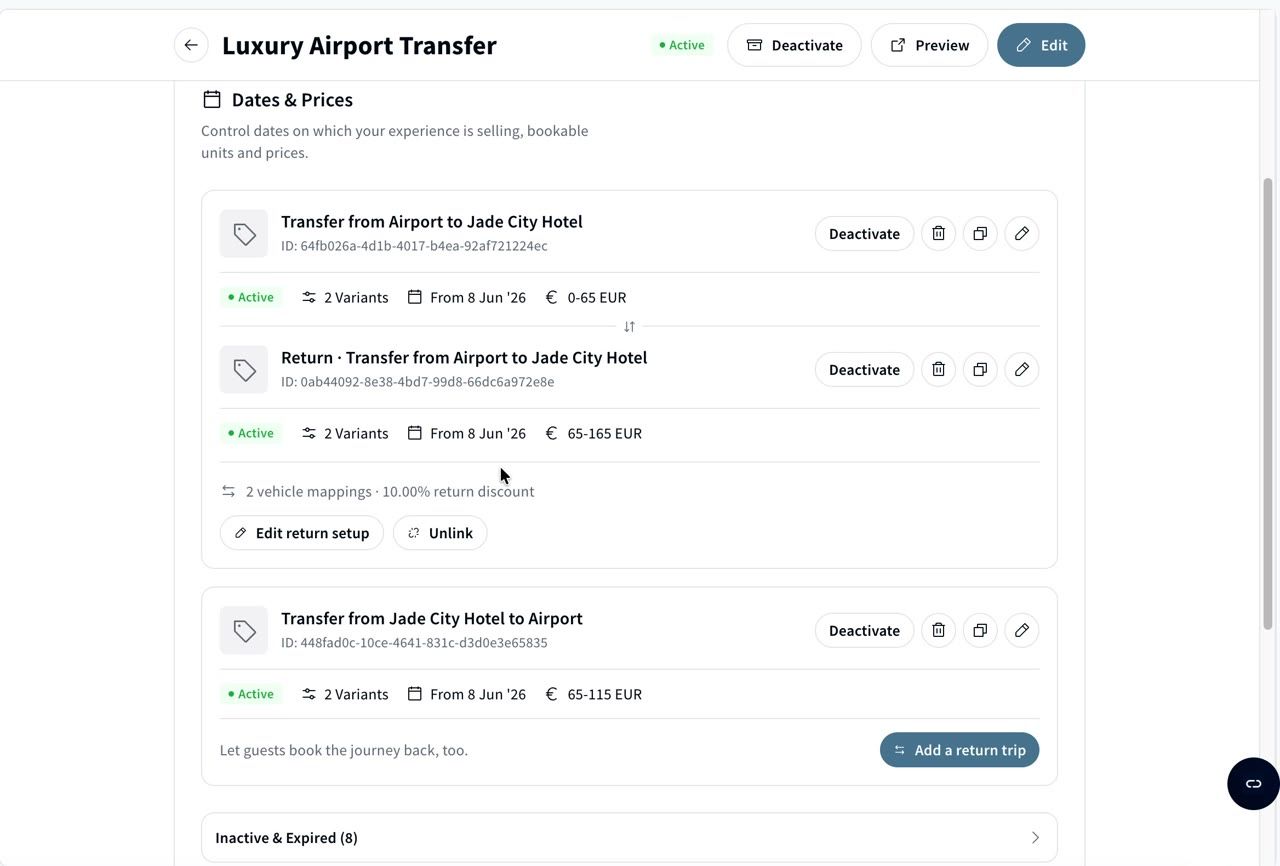 Linked options show their vehicle mappings and discount.
Click Edit return setup to change pickups, vehicle matching, or the discount.
Click Unlink to separate the two options again.
⚠️ If a linked option is deleted, guests can no longer add the return trip. You'll see a warning on the card until you unlink it.
How guests book a return trip
On the booking widget, guests choose their outbound transfer as usual. A new Add the return trip checkbox appears, showing the saving if you set a discount (for example "Save 10%"). When they tick it, they pick the date and time for the return.
The widget shows the outbound price, the return price with the discount applied, and the total.
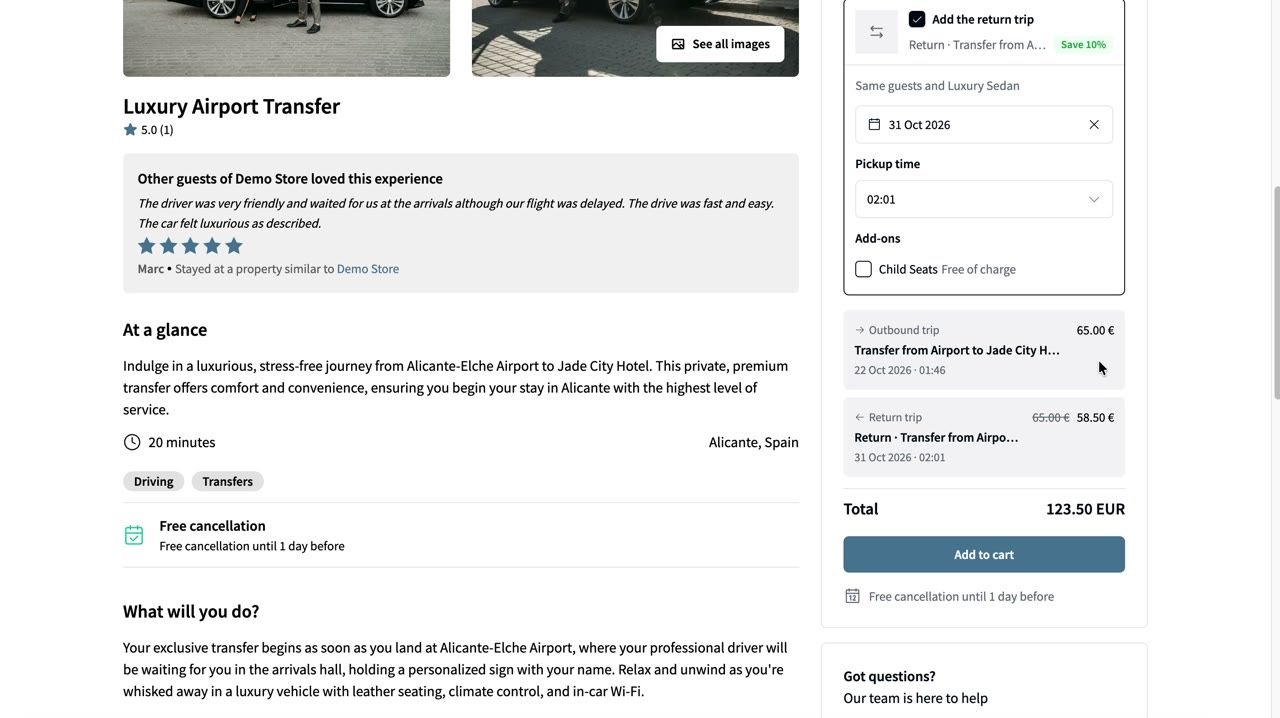 Guests tick Add the return trip, choose the return date and time, and see the total.
At checkout, the guest information is collected separately for each trip, for example passengers, luggage, flight number, and destination, because the flight out and the flight back are usually different.
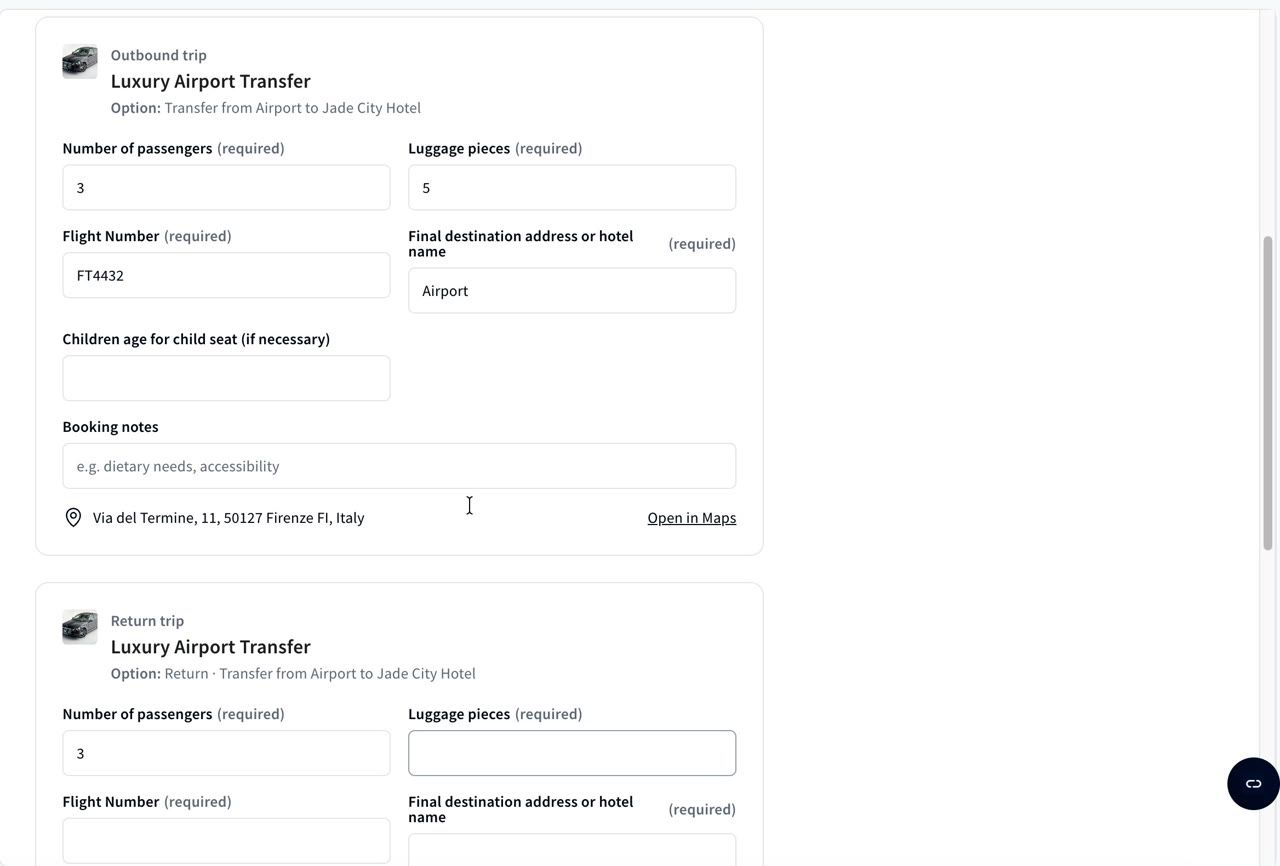 Each trip has its own details.
Bookings for return trips
Even though the guest checks out once, a return transfer creates two separate bookings, one per direction, each with its own confirmation code. Each leg shows up on its own date in your calendar and bookings list.
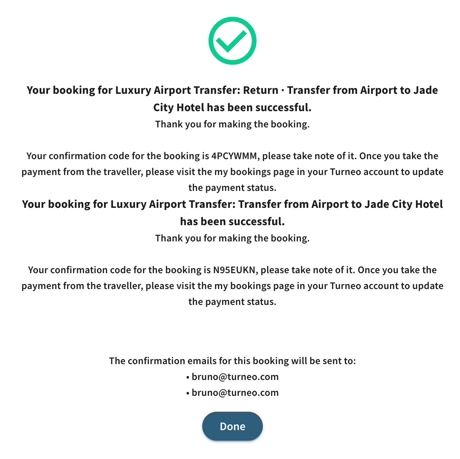 One checkout, two bookings, each with its own confirmation code.
Good to know
Add-ons are charged in full. The return discount doesn't apply to them.
Already have a return option? You don't need to rebuild it. Use Use an existing option to link it.