Setting up the Spa Center
Set up a dedicated workspace for your spa team, with treatments, therapists, rooms, schedule, bookings, guests and reports in one place.
The Spa Center is a dedicated workspace in Turneo for your spa and wellness team. Treatments, therapists, treatment rooms, the daily schedule, bookings, guests and reports all sit in one place, so the team never has to move through the rest of the platform.
💡 Beta feature. The Spa Center is currently in beta, so some details may change as we improve it.
Until now, spa treatments were set up through Resources and Experiences, and bookings were handled in Concierge and Bookings. All of that still works. The Spa Center brings it together and adds spa-wide rules, drag and drop scheduling and spa-specific reports.
1️⃣ Create your spa
- Open Spa Center in the left-hand menu. If nothing has been set up yet, the page tells you that no spa has been configured.
- Click New spa. The button sits at the top right of the page, level with the tabs, and is easy to miss.
 The empty Spa Center. New spa is at the top right.
3. Enter the Name and choose the Property the spa belongs to.
4. Under Resource types, choose the types the spa will show on its schedule and in Team & Rooms. Most spas need two: Therapist and Wellness.
5. Under Experience categories, choose the category your treatments belong to, for example Wellness. This does not add treatments by itself, that is the next step.
6. Click Create spa.
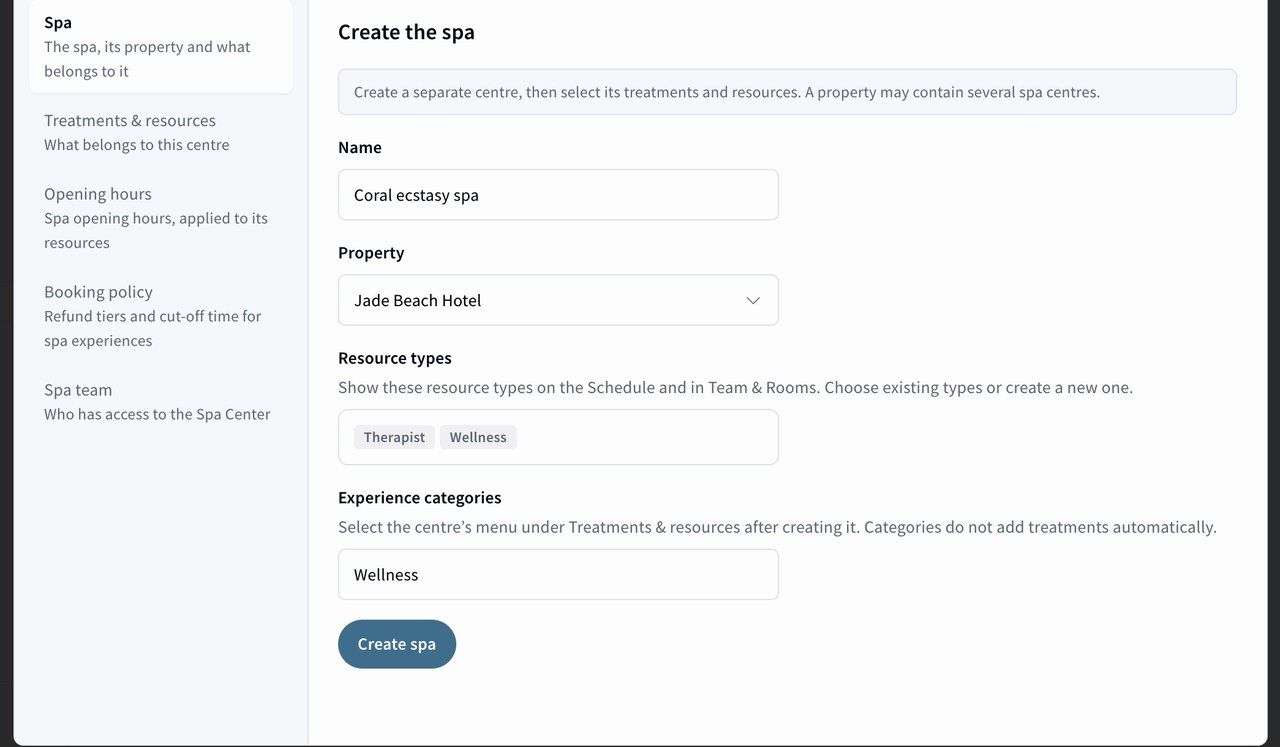 The Create the spa form: name, property, resource types and experience categories.
2️⃣ Add treatments and resources
Next, tell the spa which treatments it sells and who or what delivers them.
- Under Treatments, choose the experiences the spa sells, for example a massage or a facial.
- Under Resources, choose your therapists and treatment rooms.
- Click Save settings.
You can add more treatments, therapists and rooms at any time from the Menu and Team & Rooms tabs.
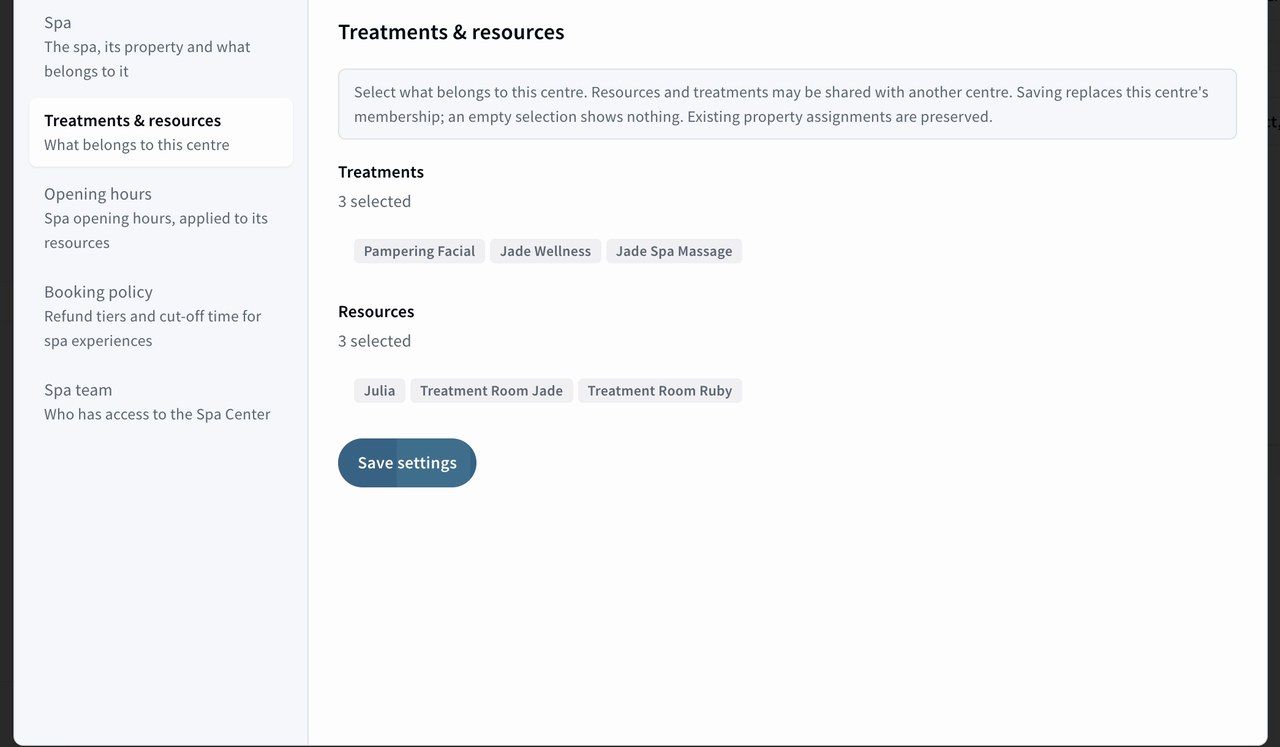 Three treatments, one therapist and two treatment rooms added to the spa.
3️⃣ Set rules for the whole spa
The Spa Center settings let you set rules once for every treatment and resource in the spa. Before, you had to set each therapist's and each room's timetable on its own.
Opening hours. Choose the start and end dates, tick the days the spa is open and set the hours. Use Apply to all to copy one day's hours to the other days, then Apply to all spa resources to give every therapist and room the same timetable.
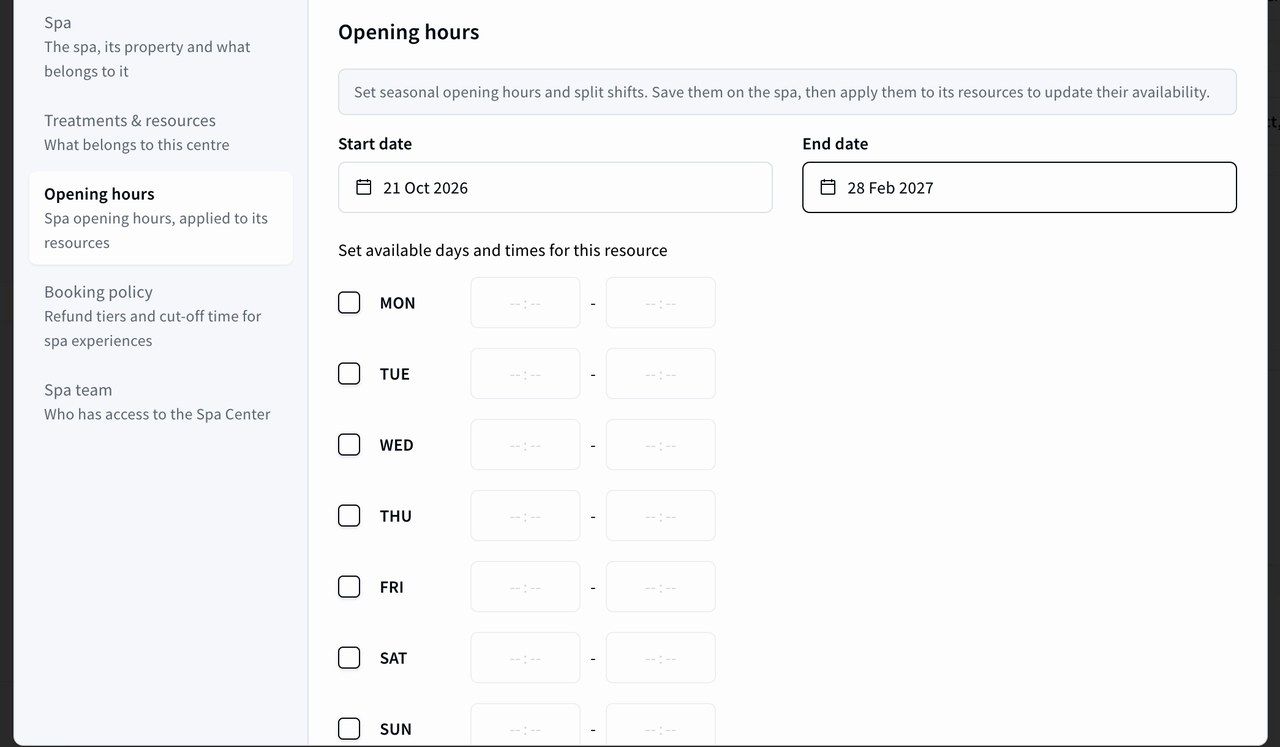 Start date, end date and the days the spa is open.
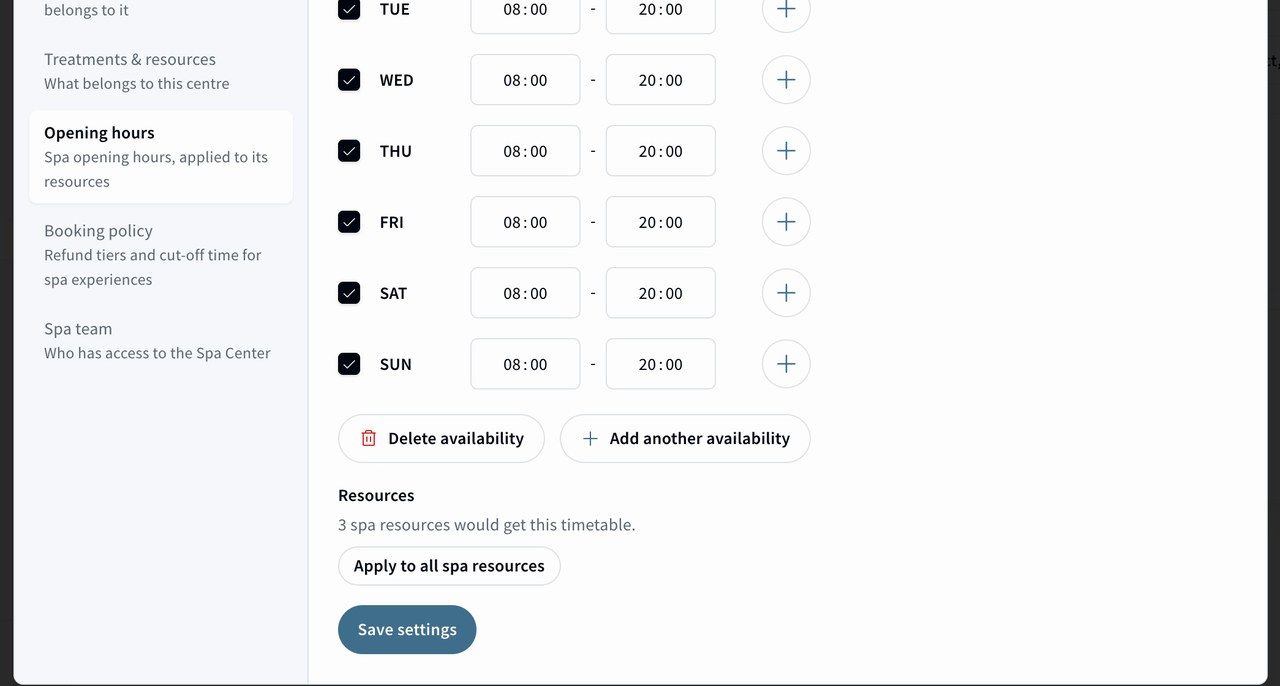 Hours set for every day, applied to all spa resources.
💡 Different hours for one person? Open that resource in Team & Rooms and edit its timetable. Individual timetables are still available.
Booking policy. Set one refund rule and one cut-off time for every spa treatment. For example, a 100% refund when guests cancel more than 10 hours before the start, and bookings closing 12 hours ahead. Use Add tier if the refund drops in steps, then click Apply to all spa experiences. This replaces the refund policy and cut-off time on each treatment, and you can still edit any treatment on its own afterwards.
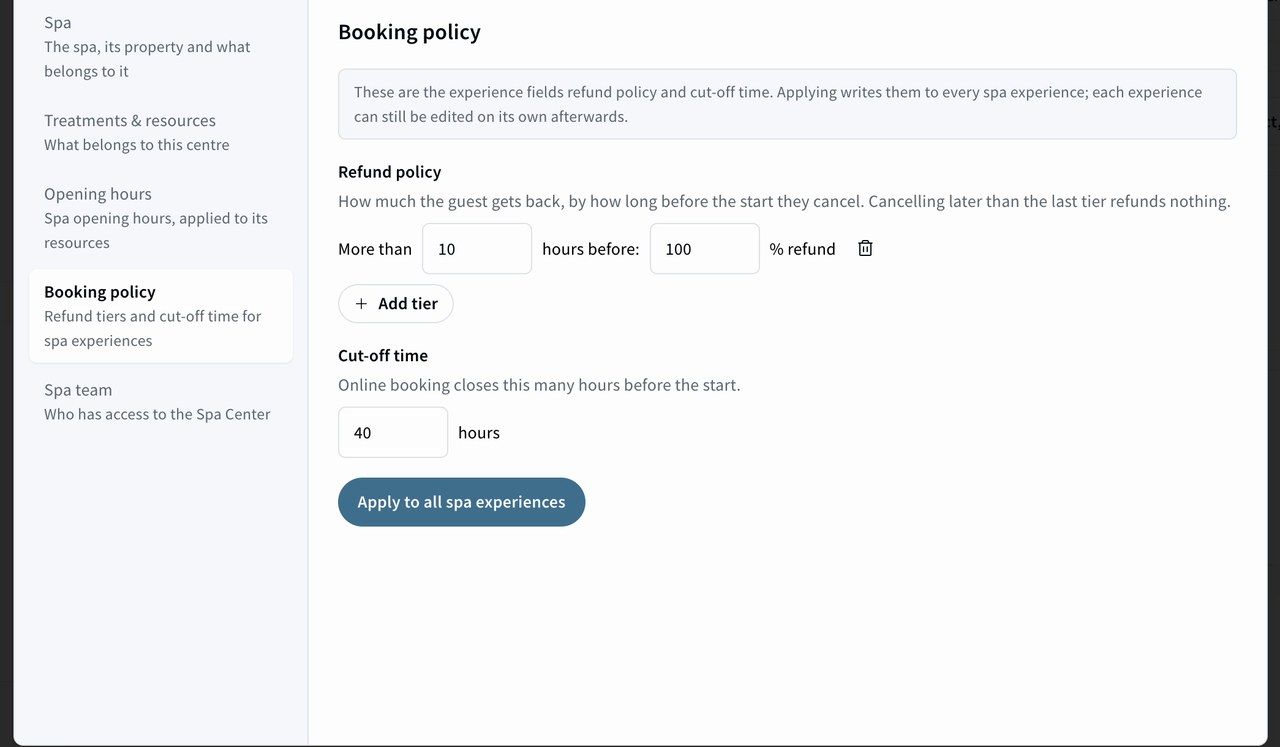 Refund tiers and cut-off time for all spa experiences.
Spa team. Choose who has access to the Spa Center. Use Manage team to add users.
4️⃣ What your team sees
Once the spa exists, the team works from these tabs.
Today. The day sheet: this day's spa bookings, listed by time. It works like the booklet in Concierge, limited to your spa.
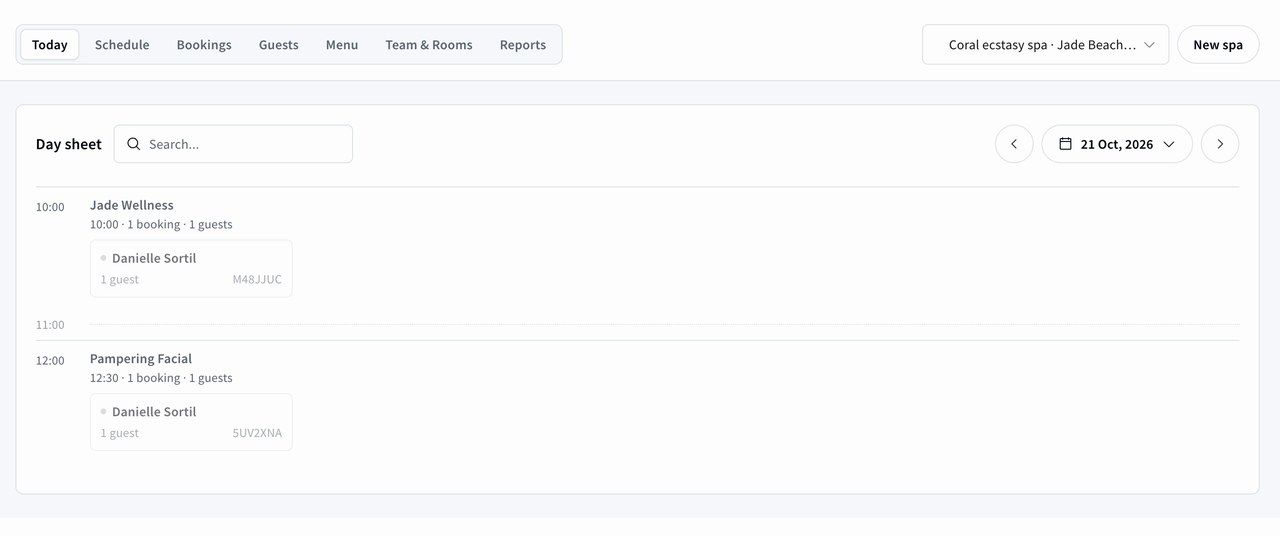 The day sheet lists each treatment with its guests.
Schedule. Every therapist and treatment room on one timeline. Search for a treatment, switch to the vertical view, or filter to show only therapists or only wellness rooms. Click a booking to open and manage it.
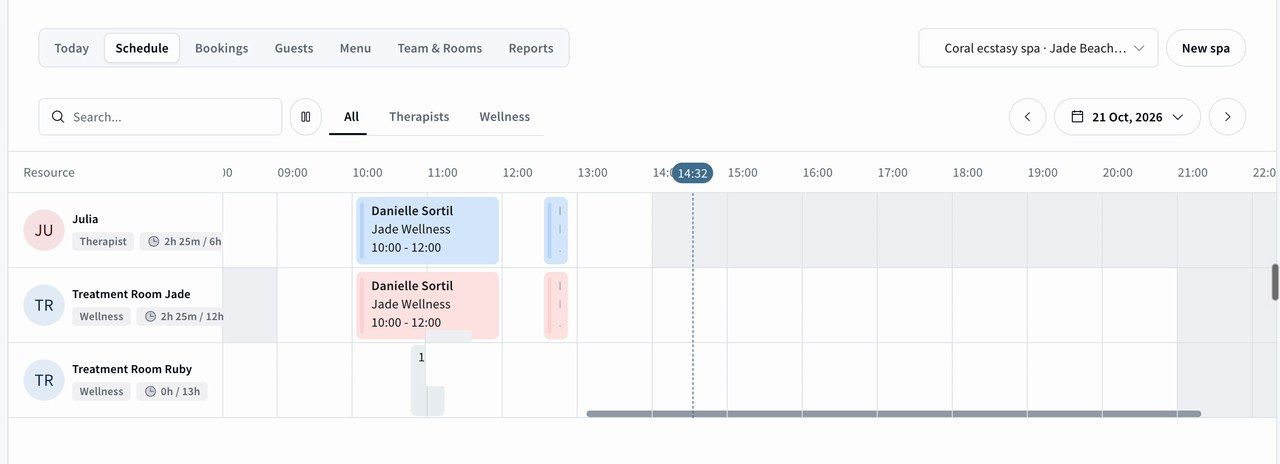 The schedule for the day, one row per therapist and room.
To move a booking, drag it to another therapist or room. You confirm the move, and it only works if they are free.
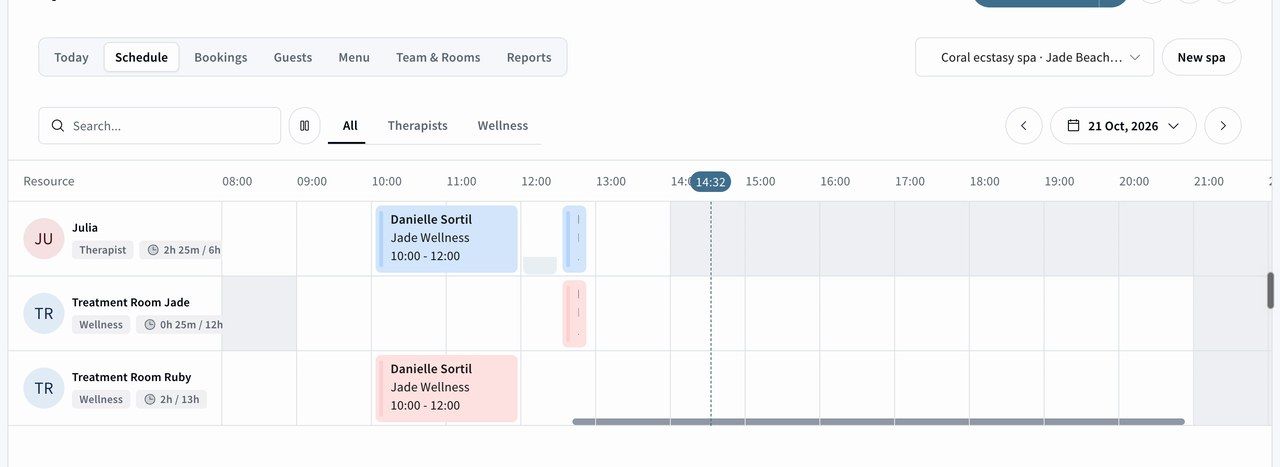 After the move, the booking sits under its new treatment room.
Bookings. The same bookings list as the main Bookings section, limited to the spa. The team sees no other bookings and can do everything they could before.
Guests. Guests who have visited the spa, with their visits, lifetime spend, interests, notes and next booking. Open a guest to see upcoming and past bookings, or to add a booking.
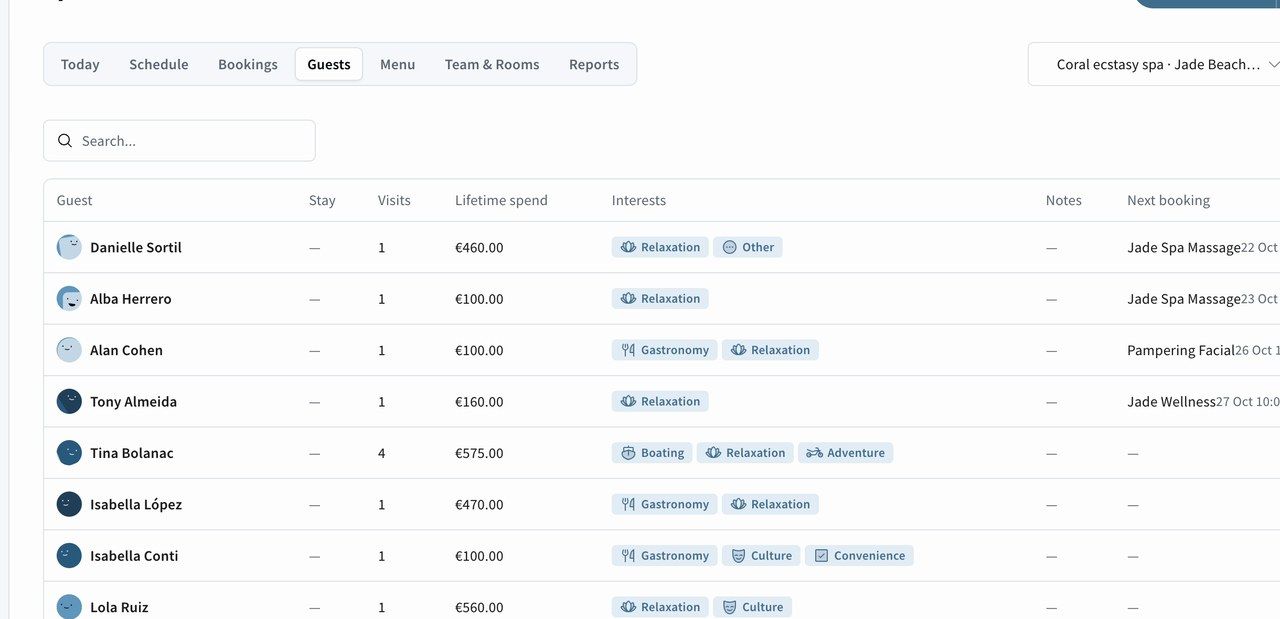 Spa guests with visits, spend, interests and next booking.
Menu. The treatments the spa sells. You can create a new experience here directly, without going to the main Experiences section.
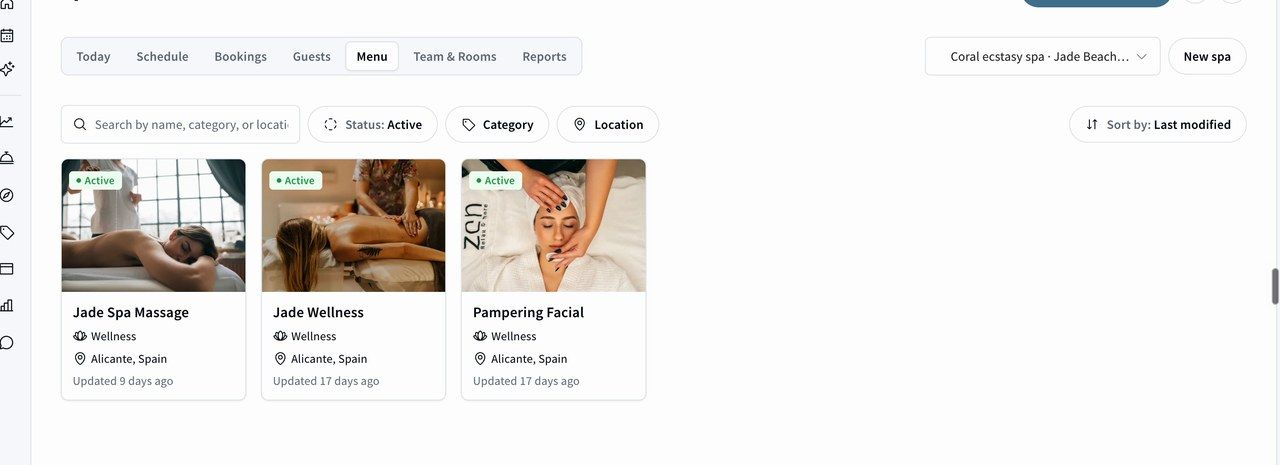 The spa menu, with the option to create an experience.
Team & Rooms. Your therapists and treatment rooms, based on the resource types you chose in step 1. Click Add Resource and choose Therapist or Wellness to add one. Open a resource and go to Timetable to change when it works, or delete resources you no longer need.
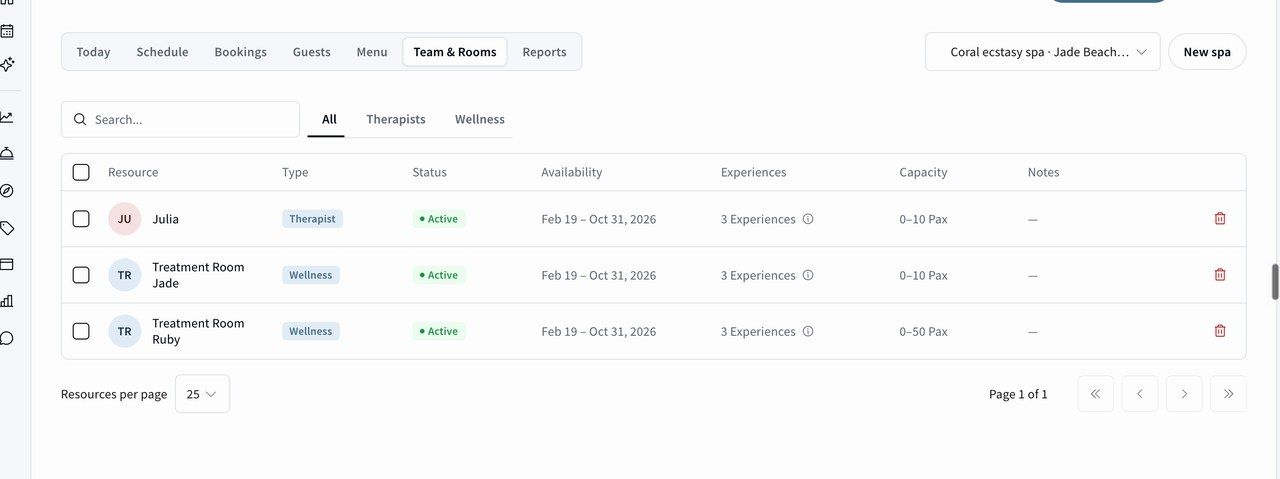 Therapists and treatment rooms for the spa.
Reports. Insights limited to the spa, with three reports made for it: therapist utilisation, wellness utilisation and spa reviews. Group the data by experience or by store, and export any of it.
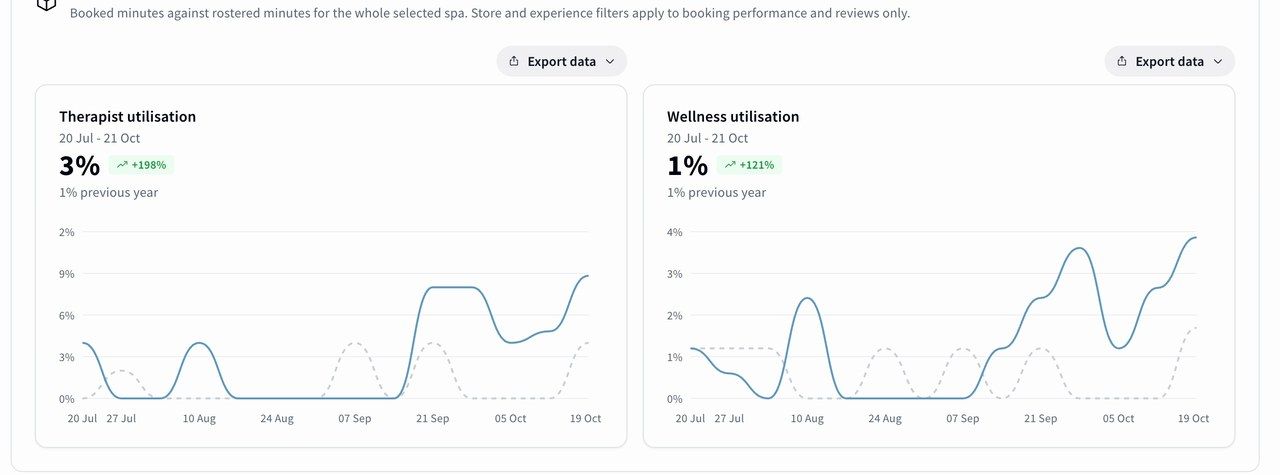 Therapist and wellness utilisation, each with its own export.