Selling gift vouchers
Let guests buy gift vouchers they can redeem against your experiences. Learn how to create a voucher, set its redemption rules, sell it, and follow each voucher from purchase to redemption.
1️⃣ What is a gift voucher?
A gift voucher is something a guest buys, often for someone else, and redeems against one or more of your experiences, such as a spa day or a dinner. You create and sell vouchers from Retail, alongside your retail products, through the same Stores, Booking Tool and checkout you already use.
Selling physical products like merch or wine? See Selling retail products.
2️⃣ Create a gift voucher
Gift vouchers are simpler than retail items: there are no variants and no inventory to manage.
- Go to Retail → Products and click Create Product ➕

The Products page, with the Create Product button top-right.
- Choose Gift voucher, give it a name (e.g. "Spa & Wellness Experiences") and click Create gift voucher
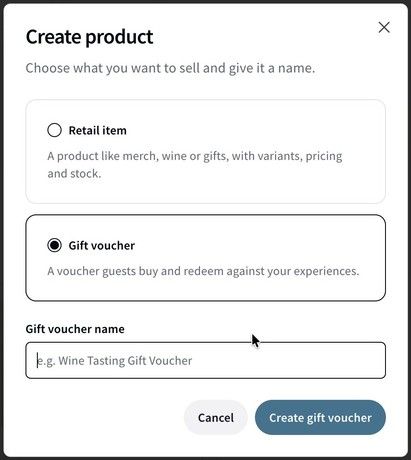
Creating a gift voucher.
- Add a Description and an image, then set the Price a guest pays for one voucher
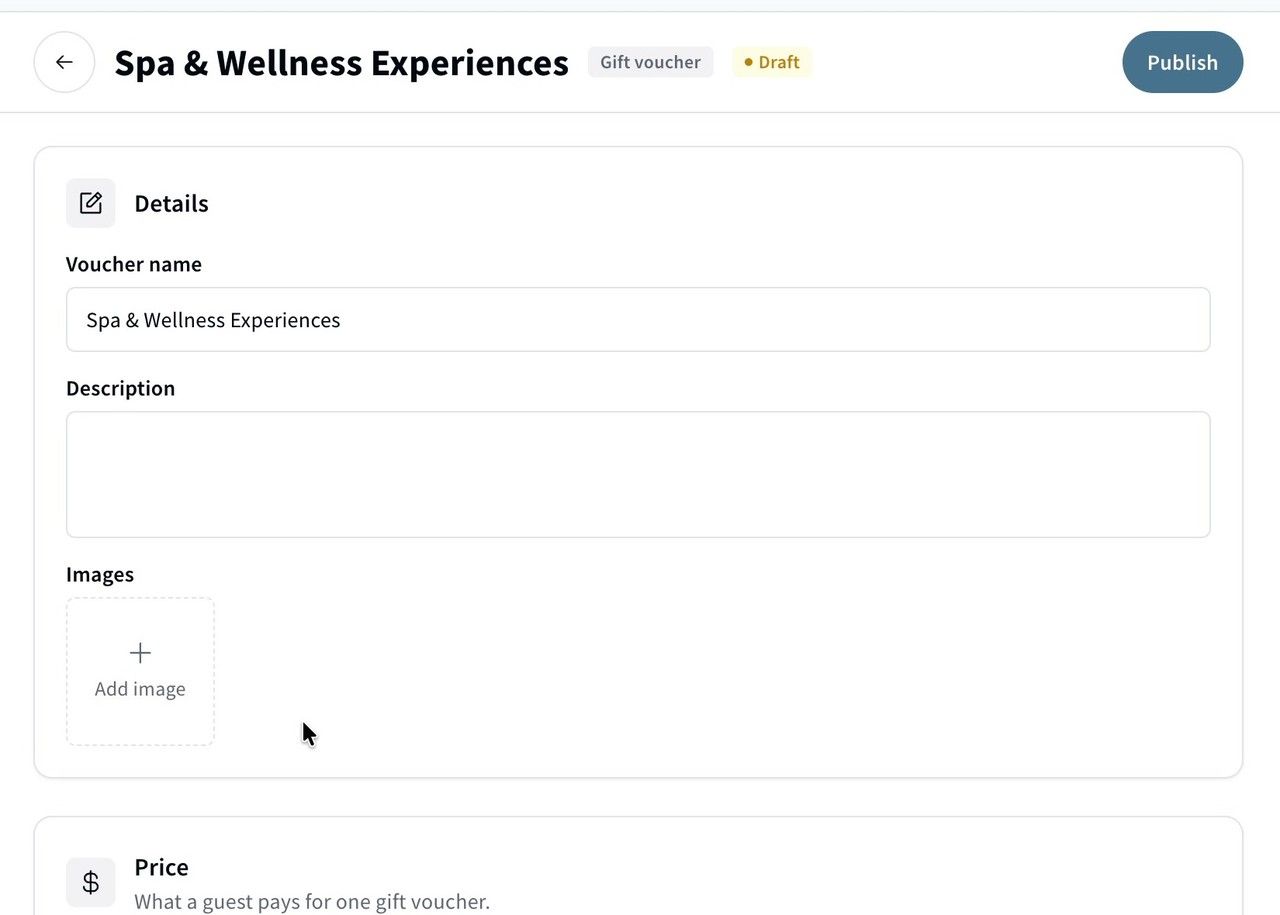
A new gift voucher, ready for its description, image and price.
3️⃣ Set the redemption rules
Under Redemption rules, choose:
- Uses per voucher: how many times the voucher can be redeemed (e.g. 3)
- Redeemable against: the experiences the voucher can be used for. Only your active experiences can be selected.
- May include one add-on: lets a redemption include one add-on of the booked experience
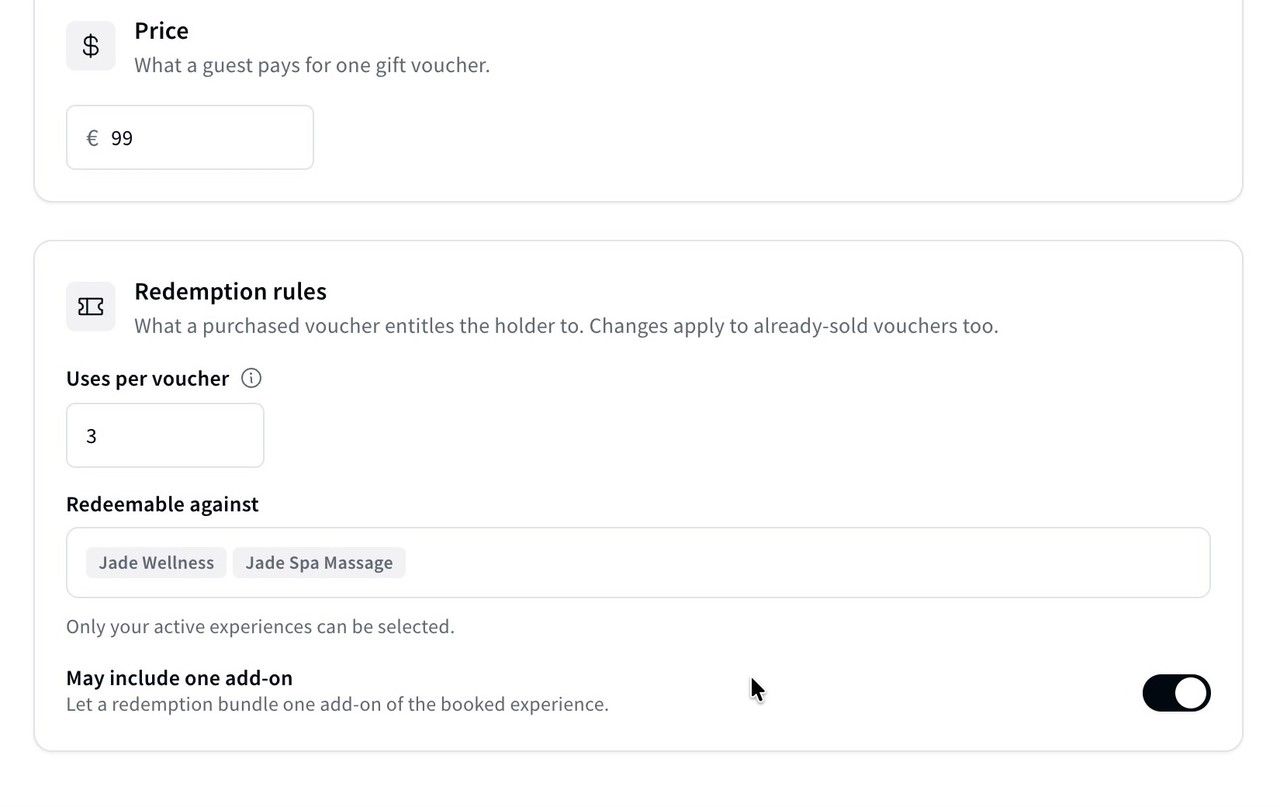
Redemption rules for a voucher: €99, three uses, redeemable against two spa experiences.
Changes to the redemption rules also apply to vouchers you've already sold.
4️⃣ Save and publish
Click Save, then Publish. The voucher is now Active.

A published gift voucher.
5️⃣ Sell your voucher
Vouchers are sold through your Stores, just like experiences and retail products.
- Go to Online Stores → Stores and open the Store you want to sell from
- On the Catalogue tab, click Add to Catalogue ➕, search for your voucher, select it and click Add
The voucher can now be sold through that Store. To show it to guests on your website, add it to an Element too (see Setting up your Turneo Elements). Your team can also sell it from Concierge → Booking Tool, where vouchers are listed with Kind set to Products. For screenshots of these steps, see Selling retail products.
6️⃣ How guests buy and redeem a gift voucher
When someone buys a gift voucher, they're asked Who is this gift for? and enter the Recipient's email.
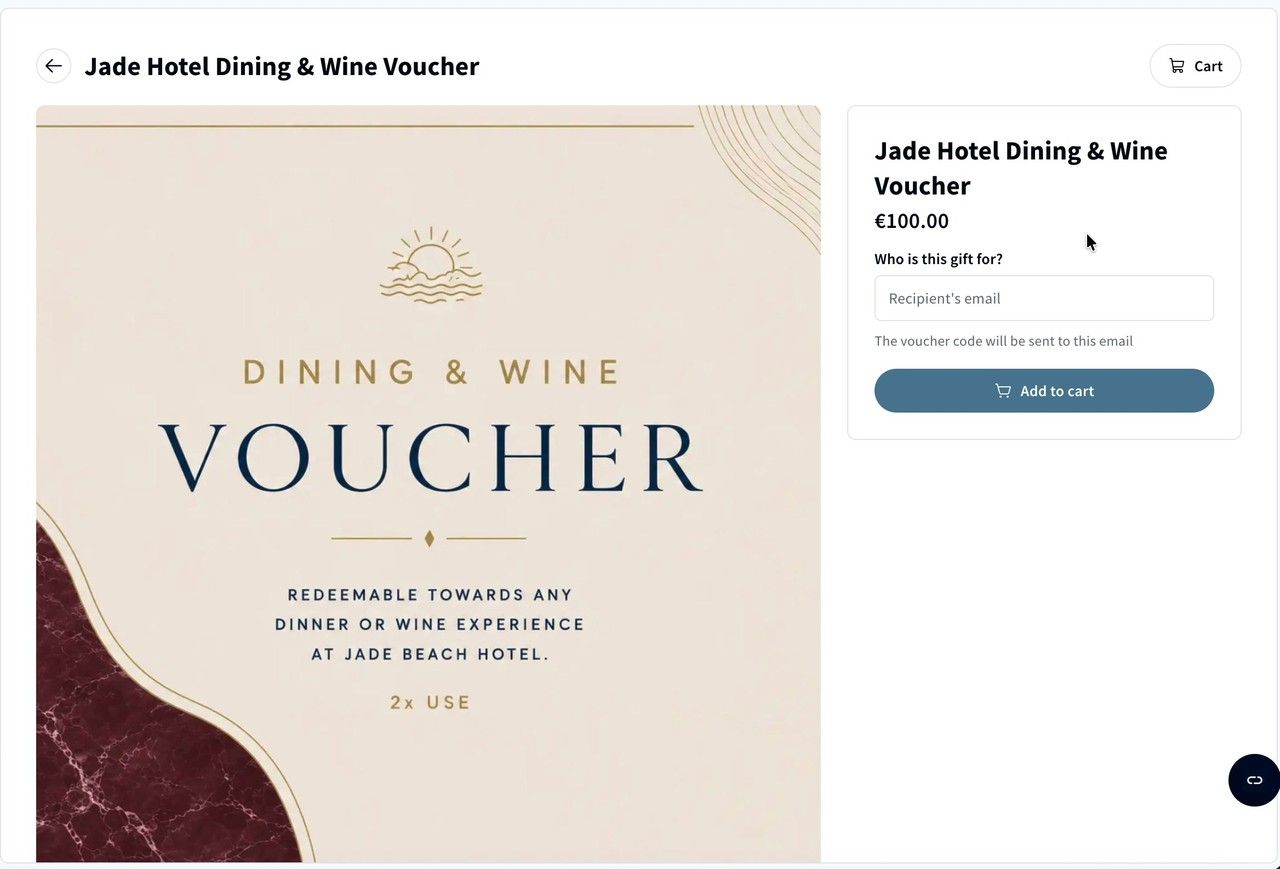
Entering the recipient's email when buying a gift voucher.
- The buyer gets the usual confirmation email for their purchase
- The recipient gets an email with the voucher code, how many times it can be used, and the experiences it can be redeemed against
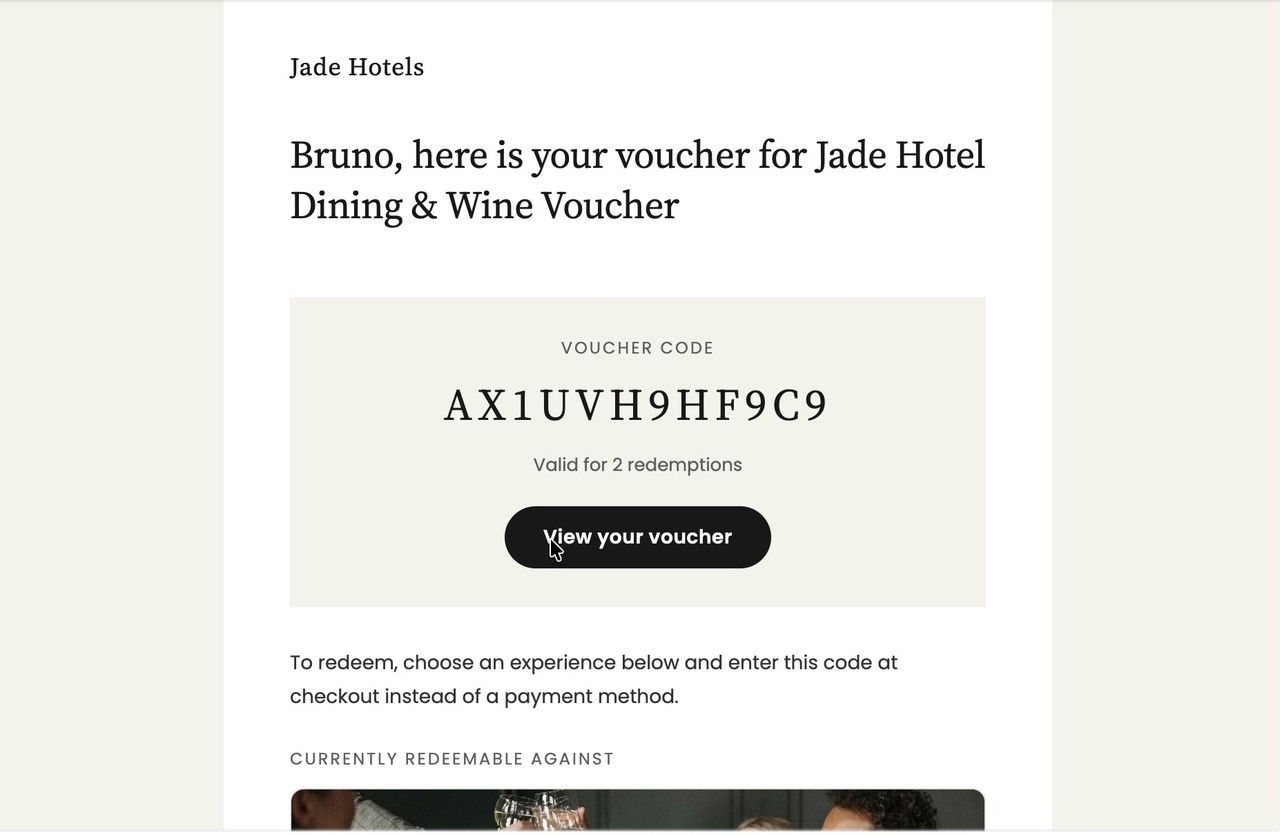
The email the recipient receives, with their voucher code.
To redeem it, the recipient picks one of the experiences listed in the email and selects a date as usual. When they come through the link in the email, the voucher is applied automatically.
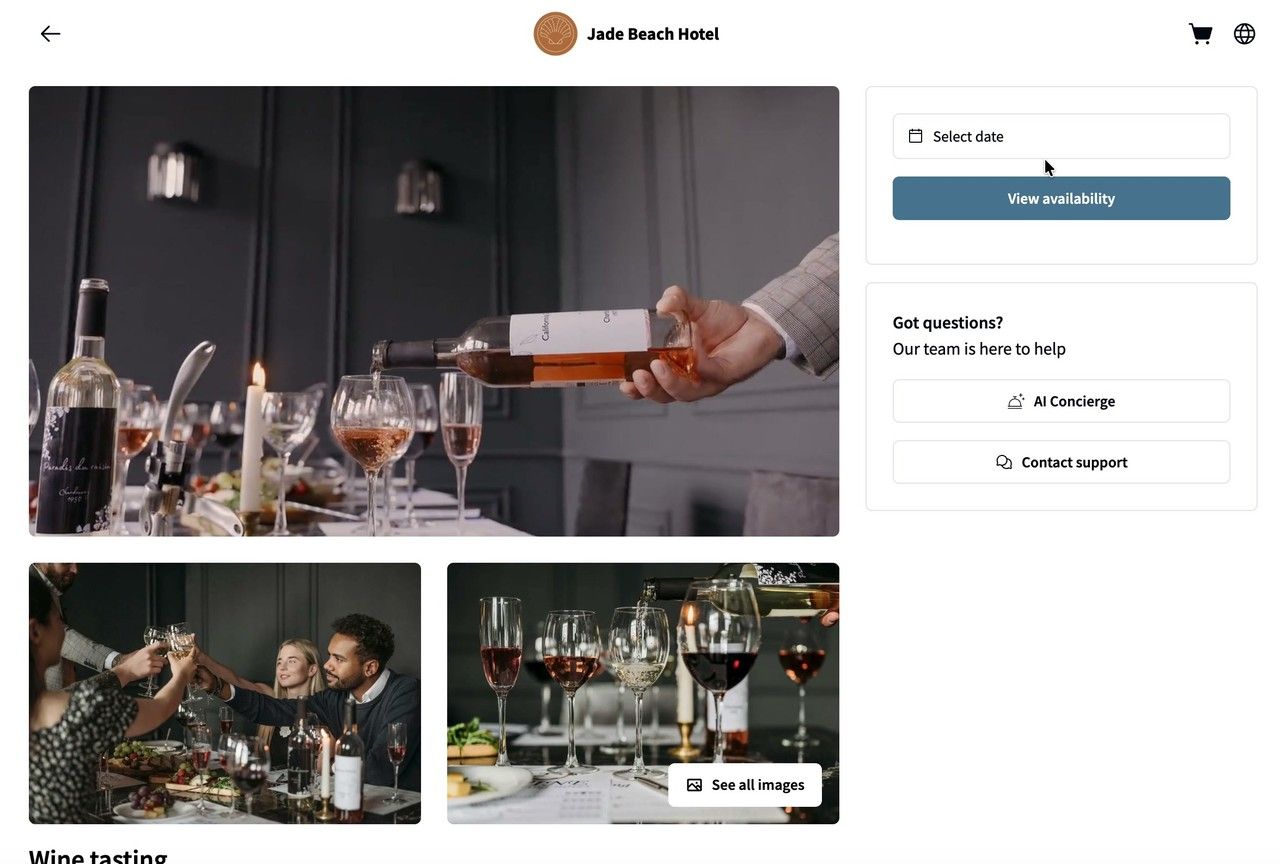
Picking a date for an experience covered by the voucher.
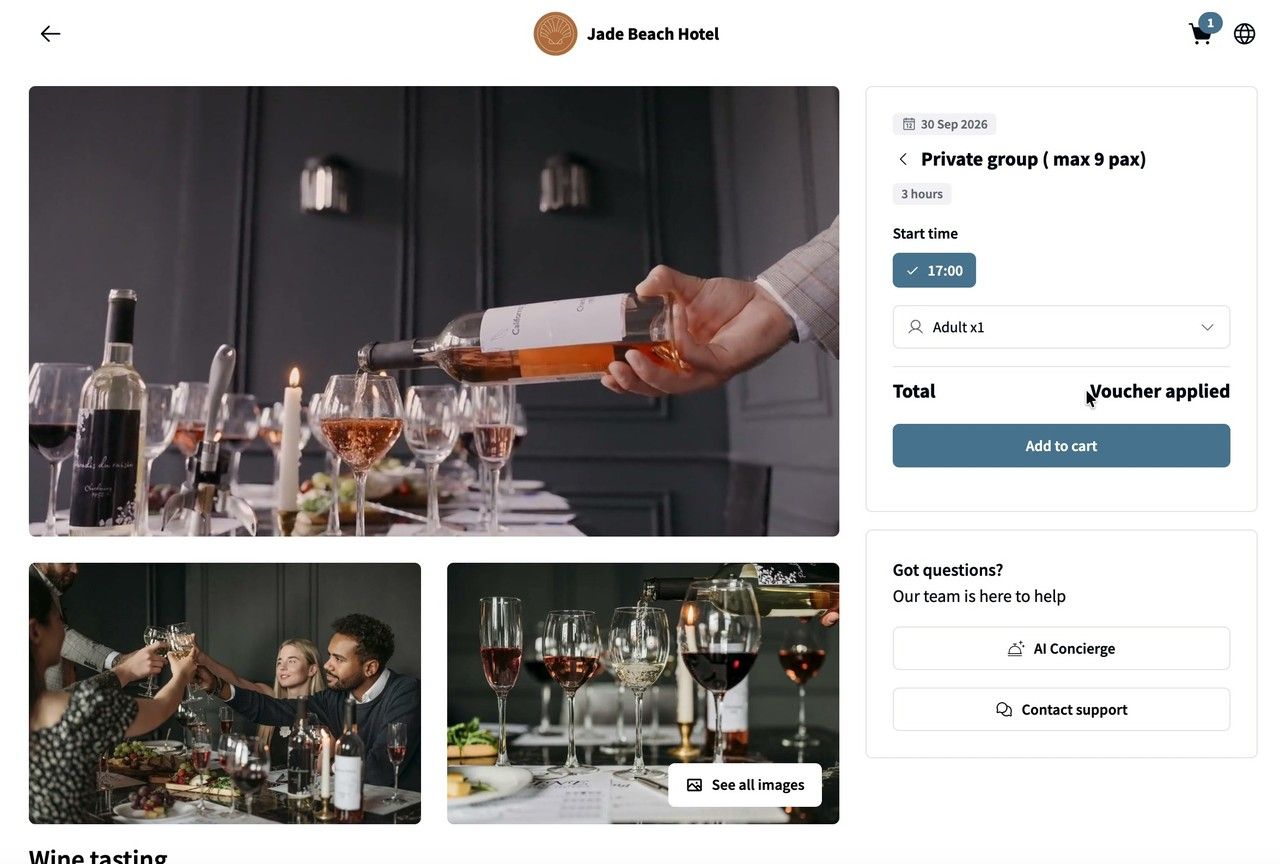
The voucher applied to the booking.
If they book without using the link, they can enter the voucher code at checkout instead of a payment method.
7️⃣ Track voucher sales and redemptions
Vouchers don't show up under Bookings like experiences do. Every voucher sold is listed under Retail → Sales, together with the guest, when it was ordered, the total and the purchase code. Set Product type to Gift vouchers to see only vouchers.
Vouchers don't need fulfilling. Their status follows how much of the voucher has been used:
- Not redeemed: the default for a new voucher sale
- Partially redeemed: some uses are left (e.g. 1 of 2 used)
- Redeemed: every use has been redeemed
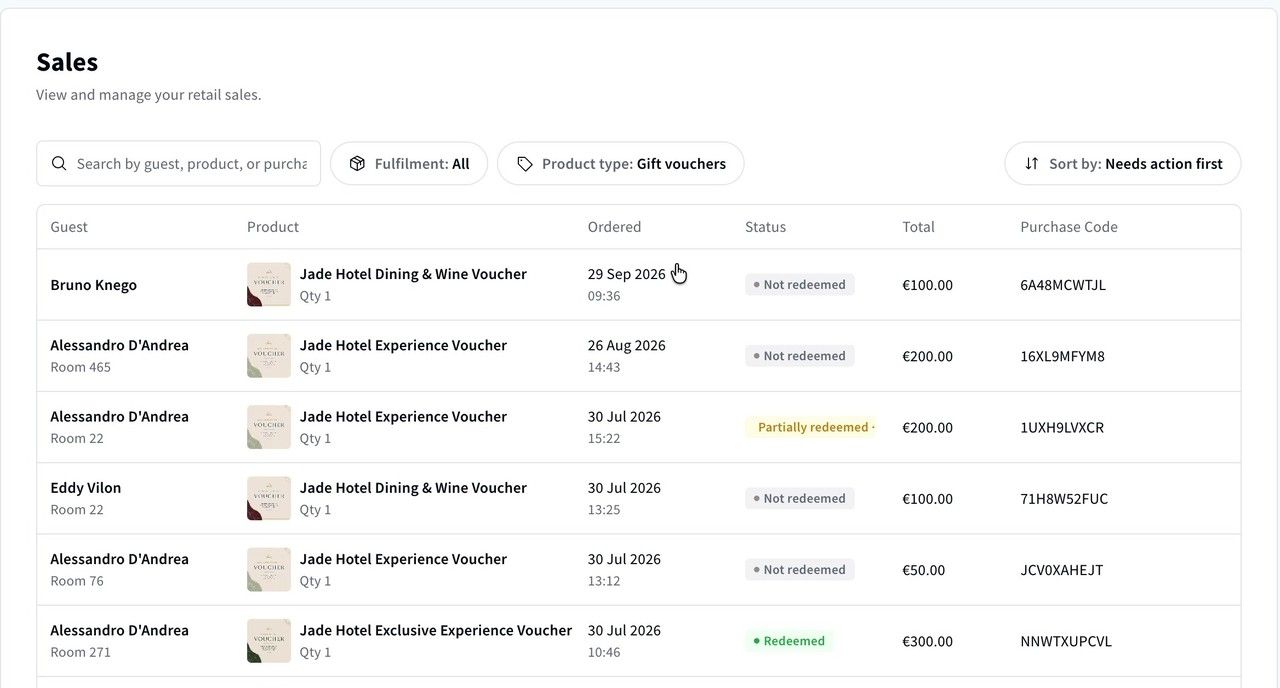
Sales filtered to gift vouchers, with their redemption status.
Click a voucher sale to see its voucher code, how many uses are left, the recipient's email, and which experience it was redeemed against.
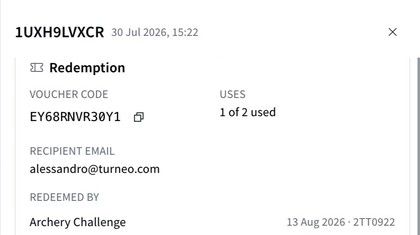
Redemption details for a gift voucher that has been used once out of two.