Selling retail products
Sell physical products like merch, wine or gifts alongside your experiences. Learn how to create them, manage stock, sell them through your Stores and the Booking Tool, and fulfil each sale.
1️⃣ What is Retail?
Retail lets you sell physical products alongside your experiences: things like merch, wine, gifts, a spa towel set or sunscreen. Products can have variants (e.g. size and colour), their own prices, and tracked stock, and they're sold through the same Stores, Booking Tool and checkout you already use.
Looking to sell gift vouchers instead? See Selling gift vouchers.
You'll find Retail in the left-hand menu, with three pages: Products, Sales and Inventory.
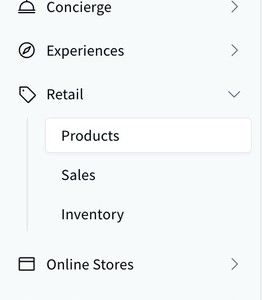
The Retail section in the left-hand menu.
Retail is built for items guests use or collect during their stay. There's no shipping or delivery, so only offer products guests can pick up or receive at the hotel.
2️⃣ View your products
The Products page lists every retail item and gift voucher you've created. Each one shows its status (Draft or Active) and its price. Use the search bar or the Status filter to find a product quickly.

The Products page, with the Create Product button top-right.
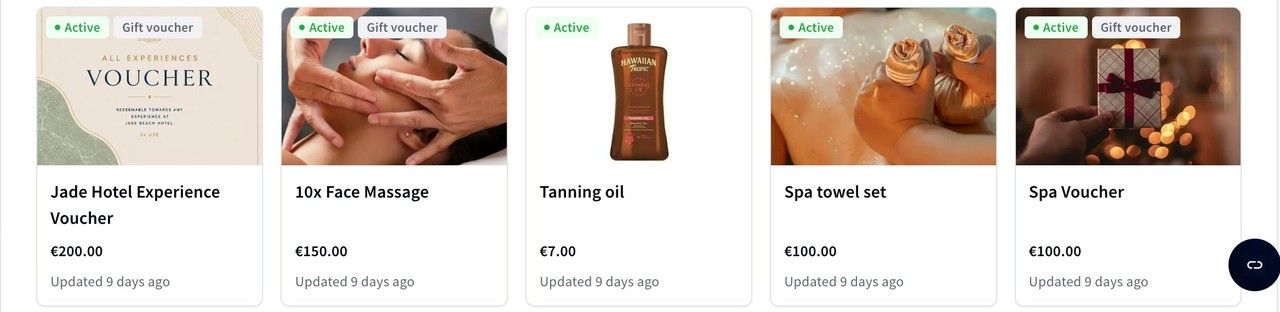
Retail items and gift vouchers side by side on the Products page.
3️⃣ Create a retail item
- Go to Retail → Products and click Create Product ➕
- Choose Retail item, give it a name (e.g. "Signature Bathrobe") and click Create product
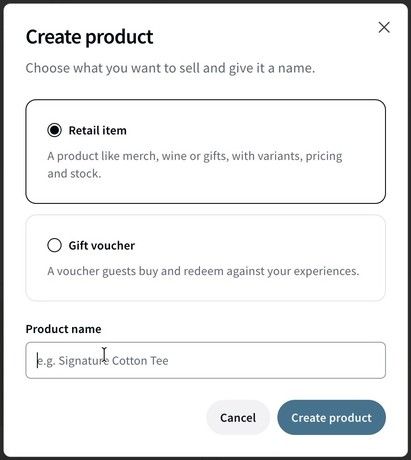
Choosing between a retail item and a gift voucher.
- Add a Description and at least one image under Images: one image is enough (experiences need three)
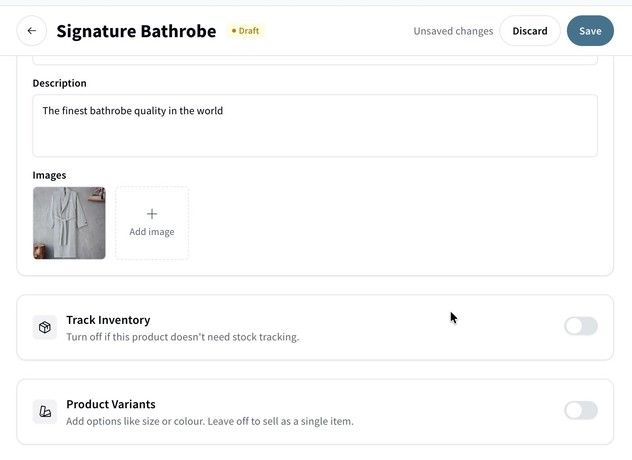
A new retail item with its description and image.
- Decide whether to turn on Track Inventory:
- On: you set how many you have in stock, and the product goes out of stock when it runs out
- Off: the product is always available (shown as Unlimited)
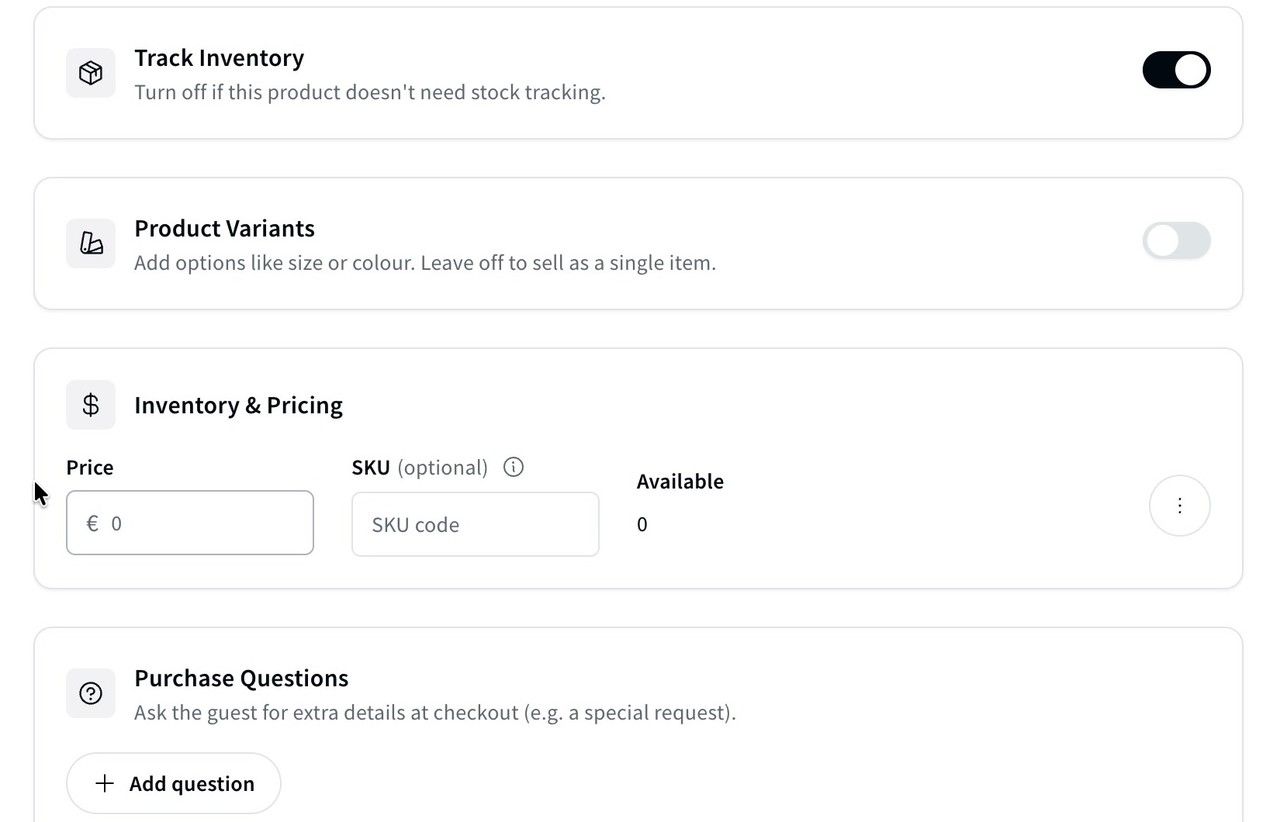
Track Inventory turned on.
- Set the Price under Inventory & Pricing. You can also add an optional SKU code.
4️⃣ Add variants (sizes, colours and more)
If your product comes in different options, turn on Product Variants.
- Enter a Variant name (e.g. "Size") and add its Variant values (e.g. "Large", "Medium")
- Click Add Another Variant to add a second one (e.g. "Color" with "White" and "Gray")
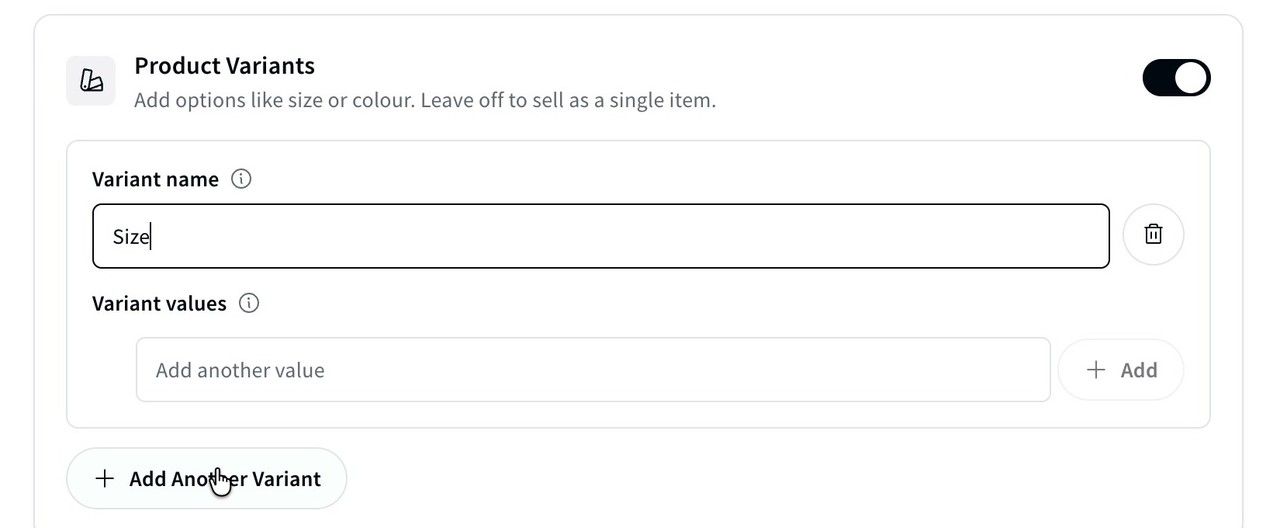
Adding a Size variant, with the Add Another Variant button below.
- Turneo creates every combination for you in Inventory & Pricing: here, Large · White, Medium · White, Large · Gray and Medium · Gray
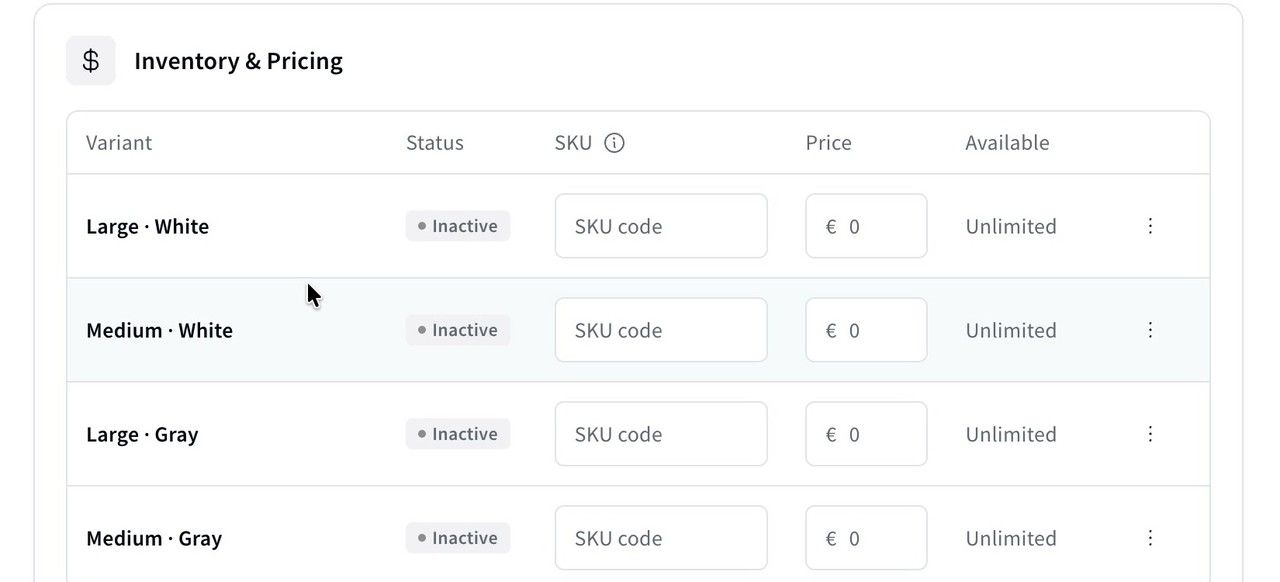
Every combination of size and colour, listed in Inventory & Pricing.
- Give each combination its own SKU and Price if you need to, for example Large at €15 and Medium at €13
- New combinations start as Inactive. Open the ⋮ menu on each row and click Activate for every combination you want to sell. You can also choose Track inventory here, per combination.
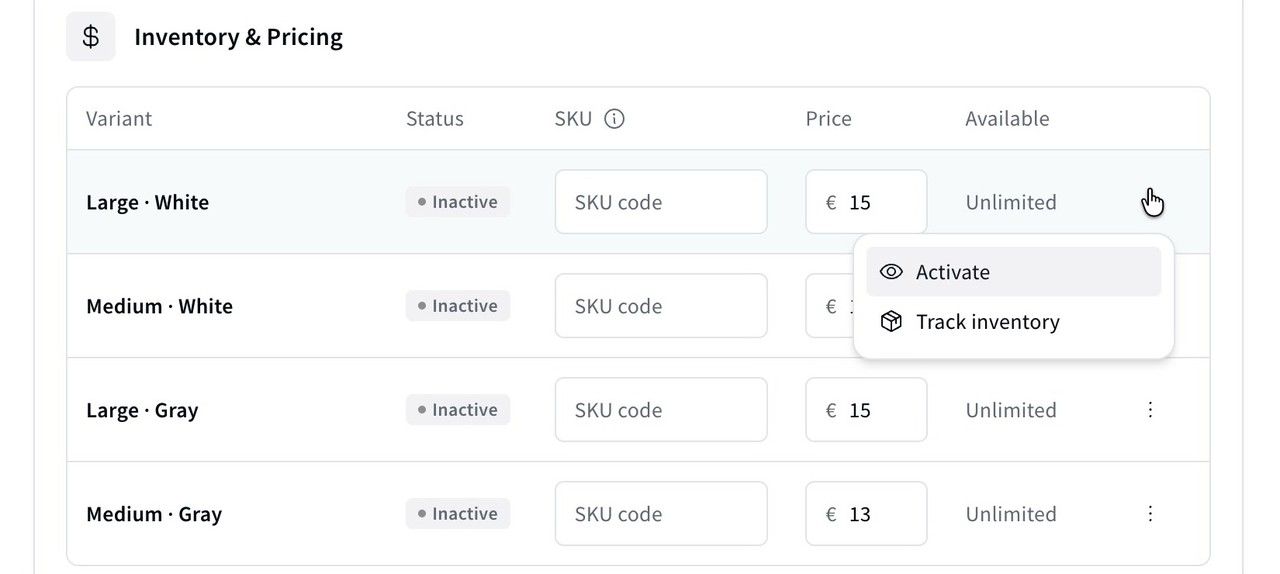
Setting a price per combination, and activating it from the ⋮ menu.
5️⃣ Ask guests extra questions
Under Purchase Questions, click Add question to ask guests for details at checkout, just like you would for an experience (e.g. a special request).
For each question you can choose the Answer type, whether This question is mandatory, and whether to Only ask for specific variants.
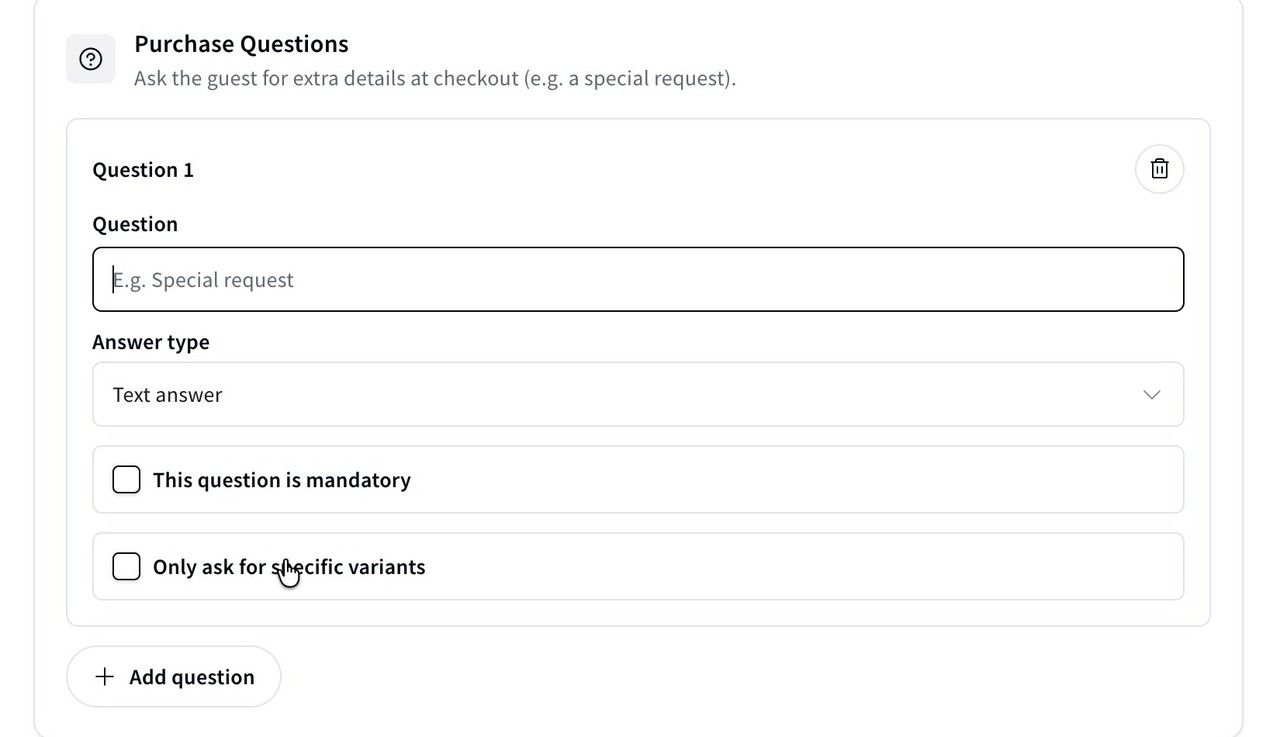
Adding a purchase question.
6️⃣ Save and publish
- Click Save at the top right
- Once saved, the button changes to Publish. Click it to make the product live.
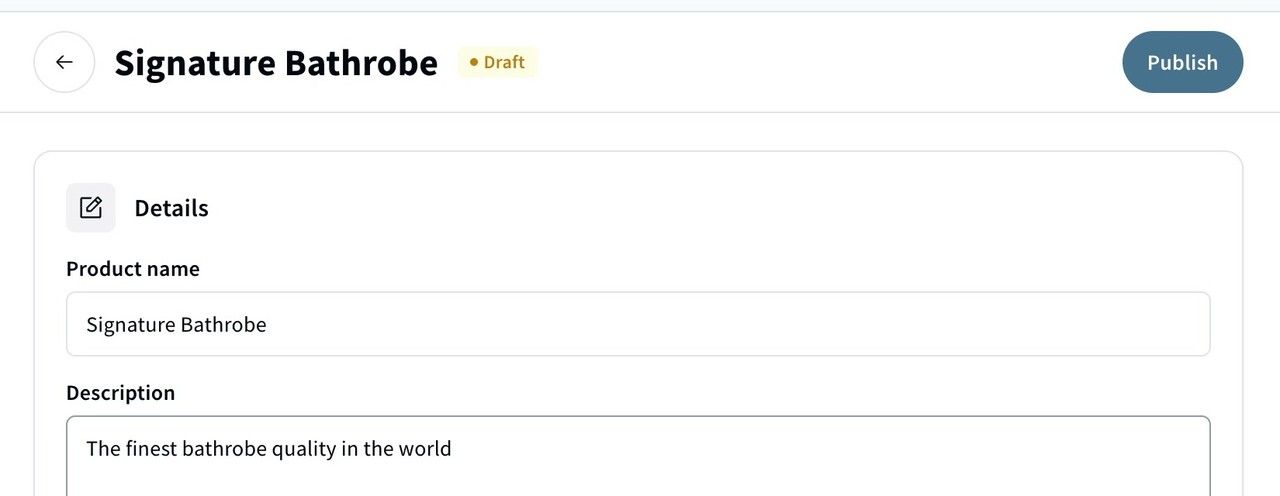
After saving, the Save button becomes Publish.
The product is now Active. If you need to change its variants later, click Unpublish first.

A published product, with the Unpublish button top-right.
7️⃣ Manage your stock
If you've turned on inventory tracking, you manage stock from Retail → Inventory. This page shows every product and variant with its Status and how many you have On hand. Products without inventory tracking show as Unlimited.
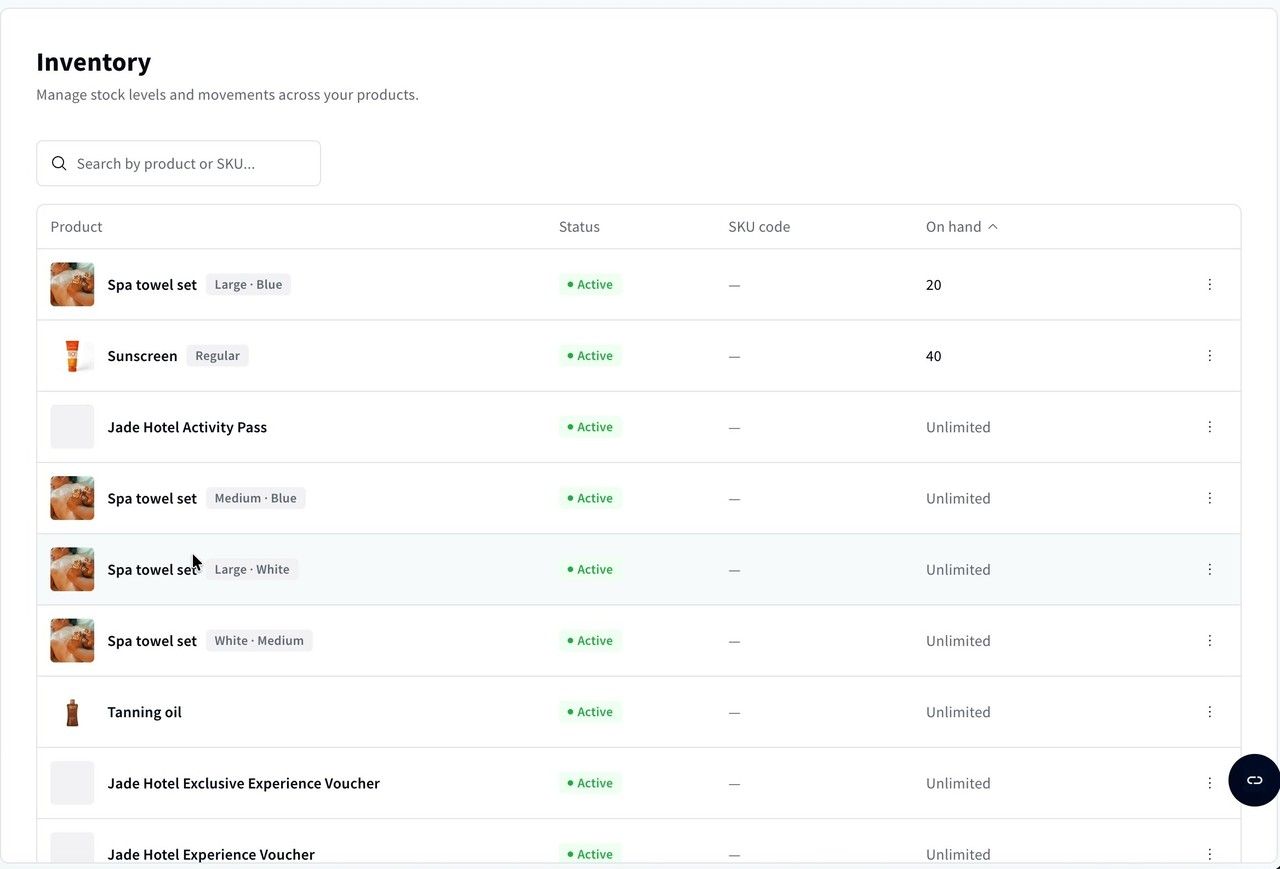
The Inventory page, with stock on hand for each product and variant.
- Search for the product by name or SKU. New variants start at 0 and show as Out of stock.
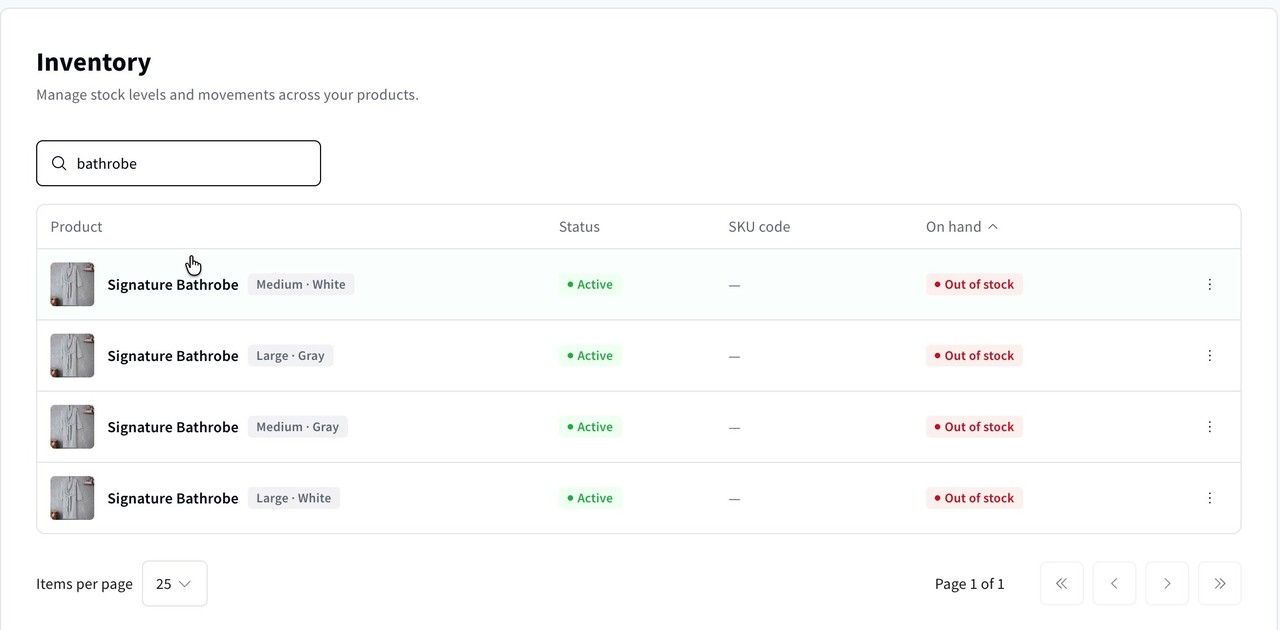
Searching Inventory for a product. Each variant is listed separately.
- Click the variant you want to update, then click Update inventory
- Choose Add Inventory to restock (or Remove Inventory to correct downward), enter the quantity, and add an optional note (e.g. "Restock from supplier")
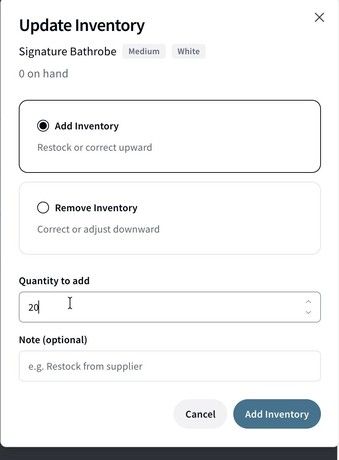
Adding stock to a variant.
- Click Add Inventory. The new amount appears straight away, and every change is logged under Movement history.
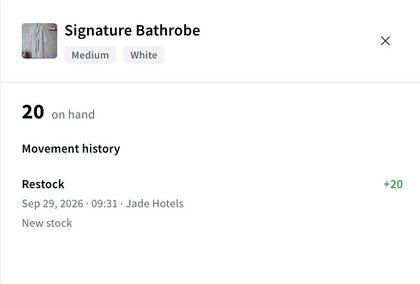
The updated stock level and its movement history.
8️⃣ Sell your products
Products are sold through your Stores, just like experiences.
- Go to Online Stores → Stores and open the Store you want to sell from
- On the Catalogue tab, click Add to Catalogue ➕
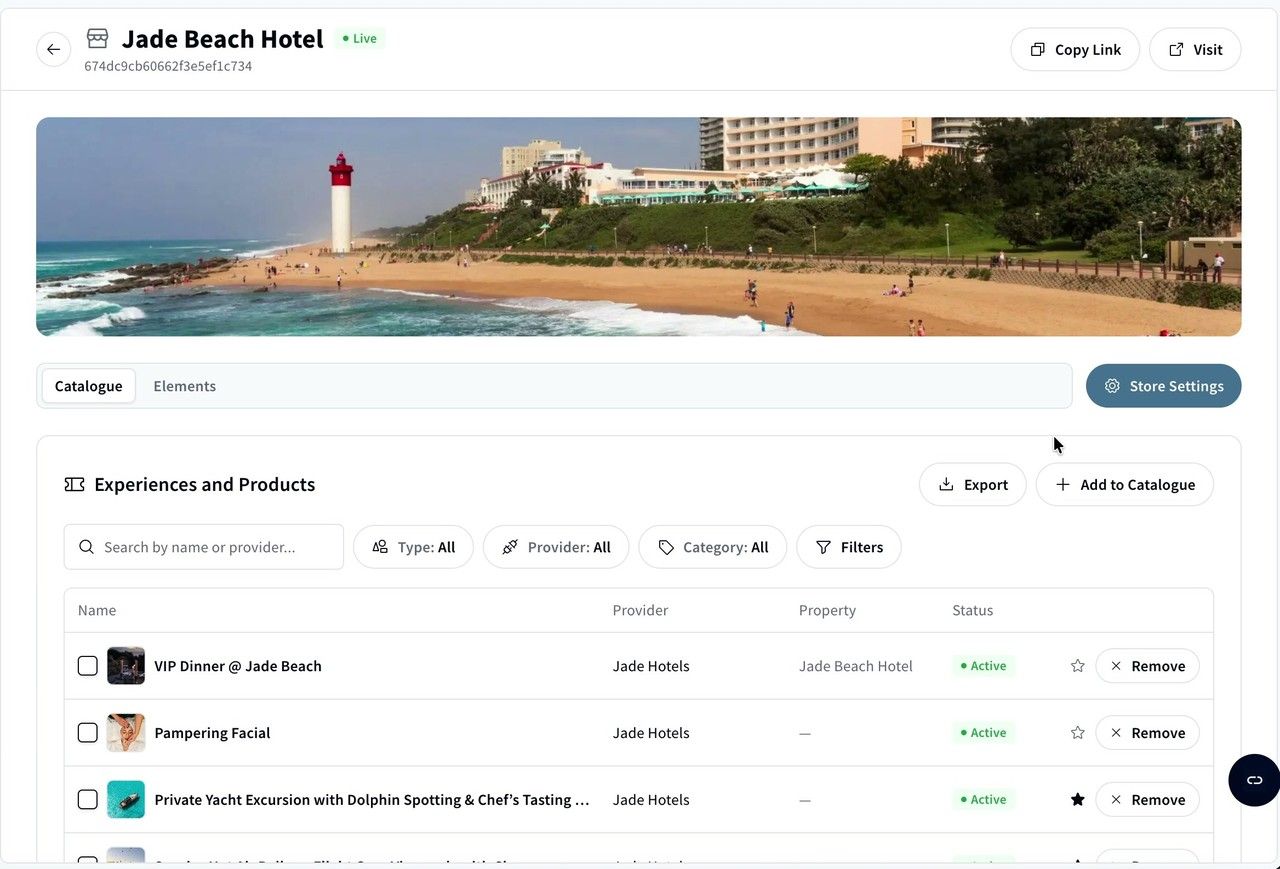
A Store's Catalogue, which now lists both experiences and products.
- Search for your product, select it and click Add
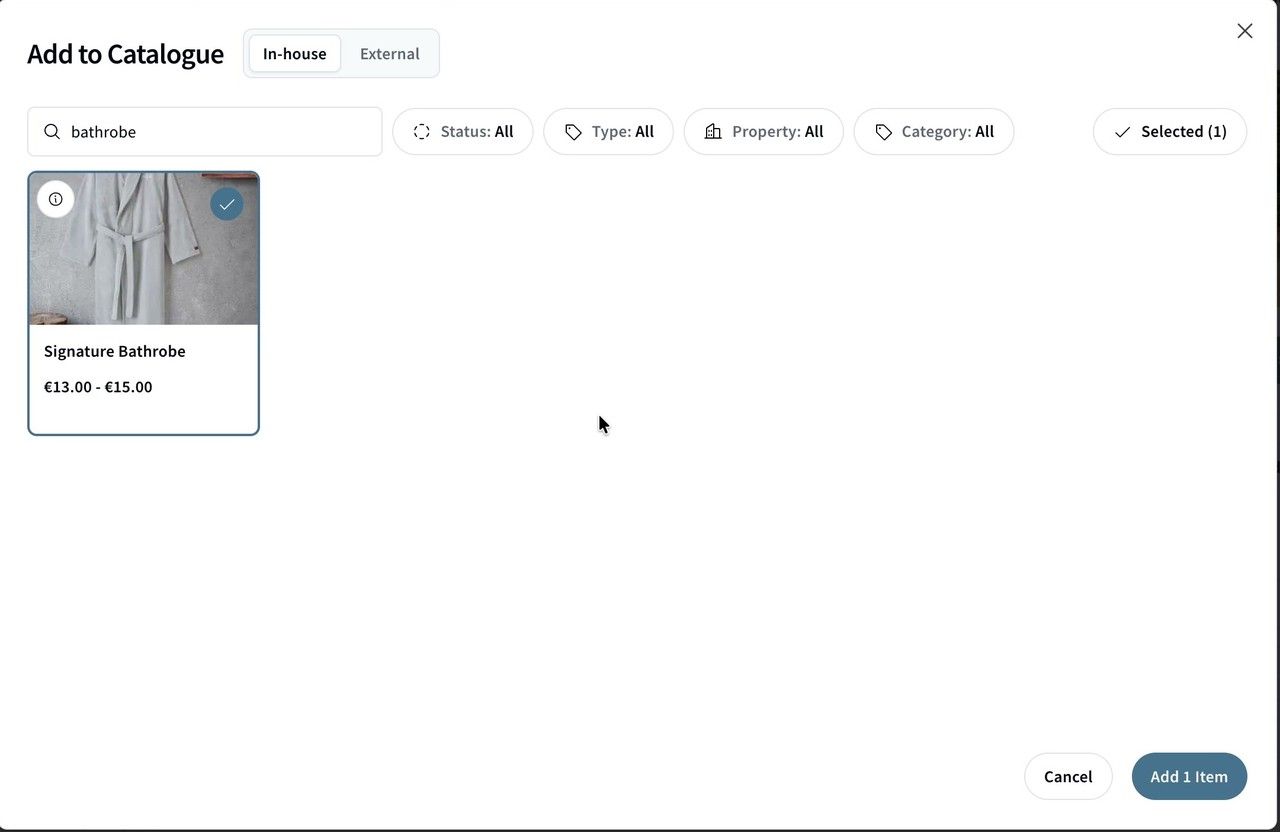
Adding a product to a Store's catalogue.
The product can now be sold through that Store. To show it to guests on your website, add it to an Element too (see Setting up your Turneo Elements).
Book a product from the Booking Tool
Your team can also sell products directly from the Booking Tool:
- Go to Concierge → Booking Tool and set Kind to Products
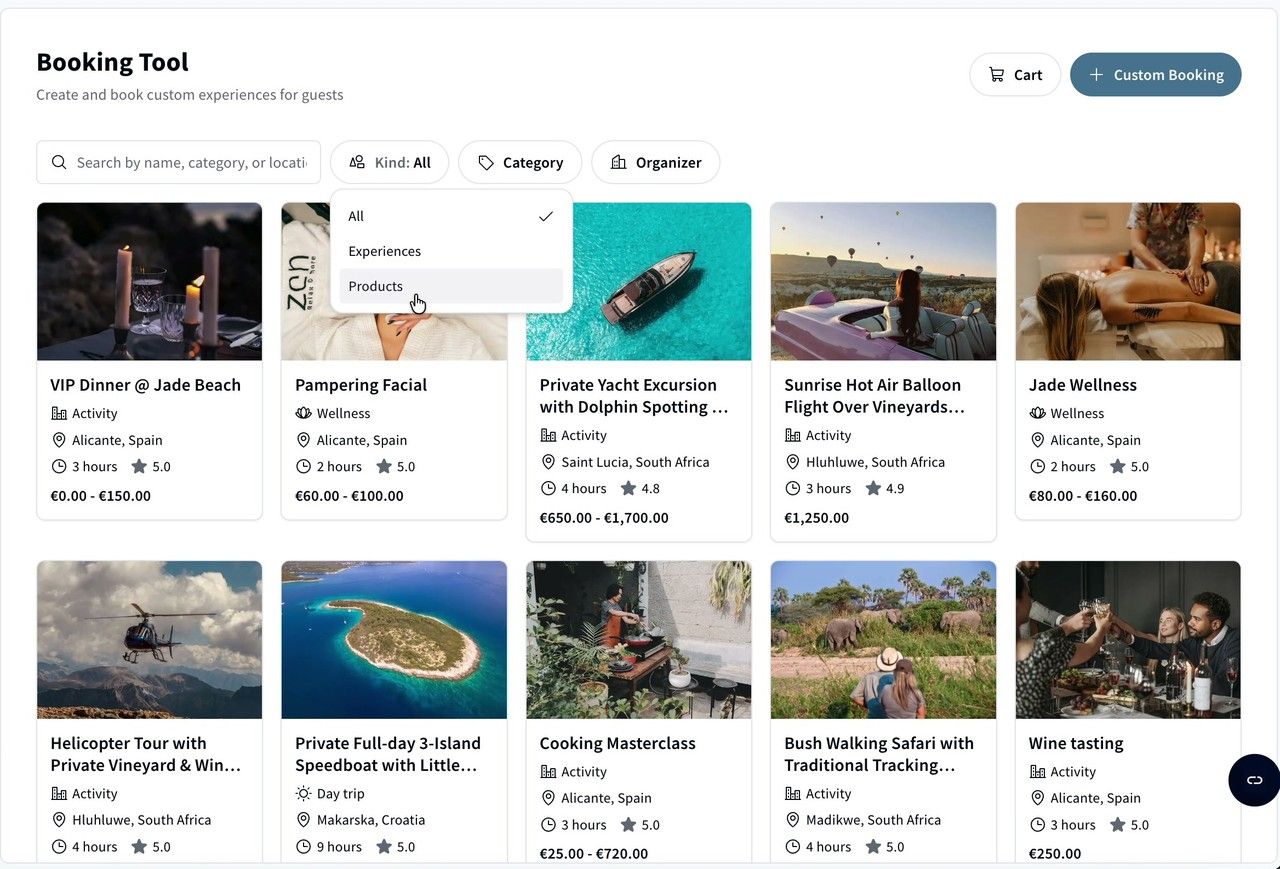
Filtering the Booking Tool to show products only.
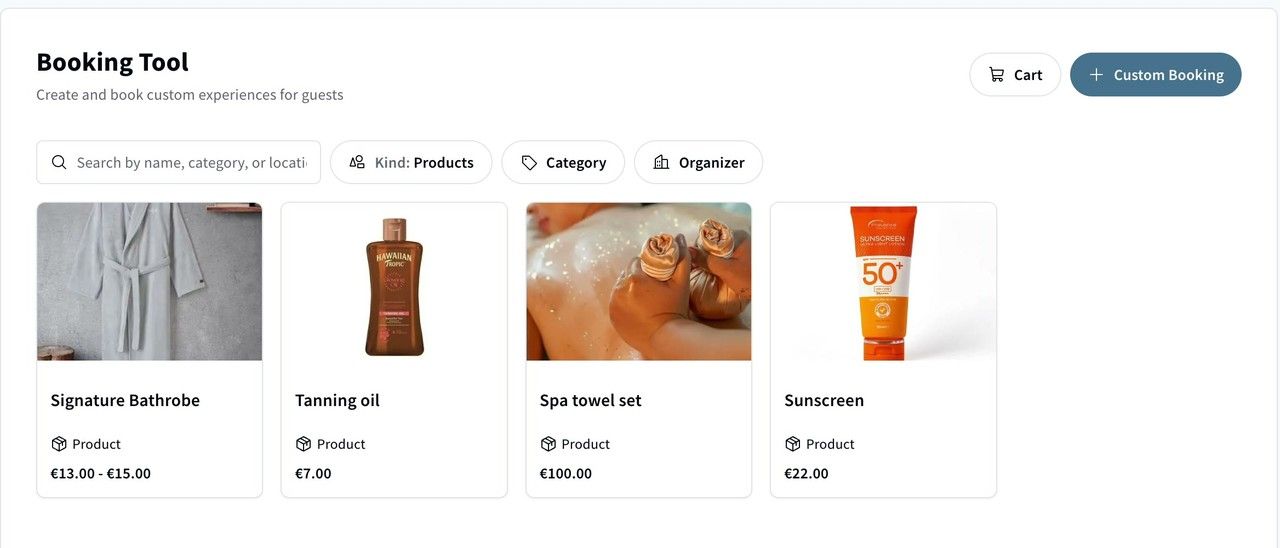
The Booking Tool showing only products.
- Open the product and pick its options (e.g. size and colour)
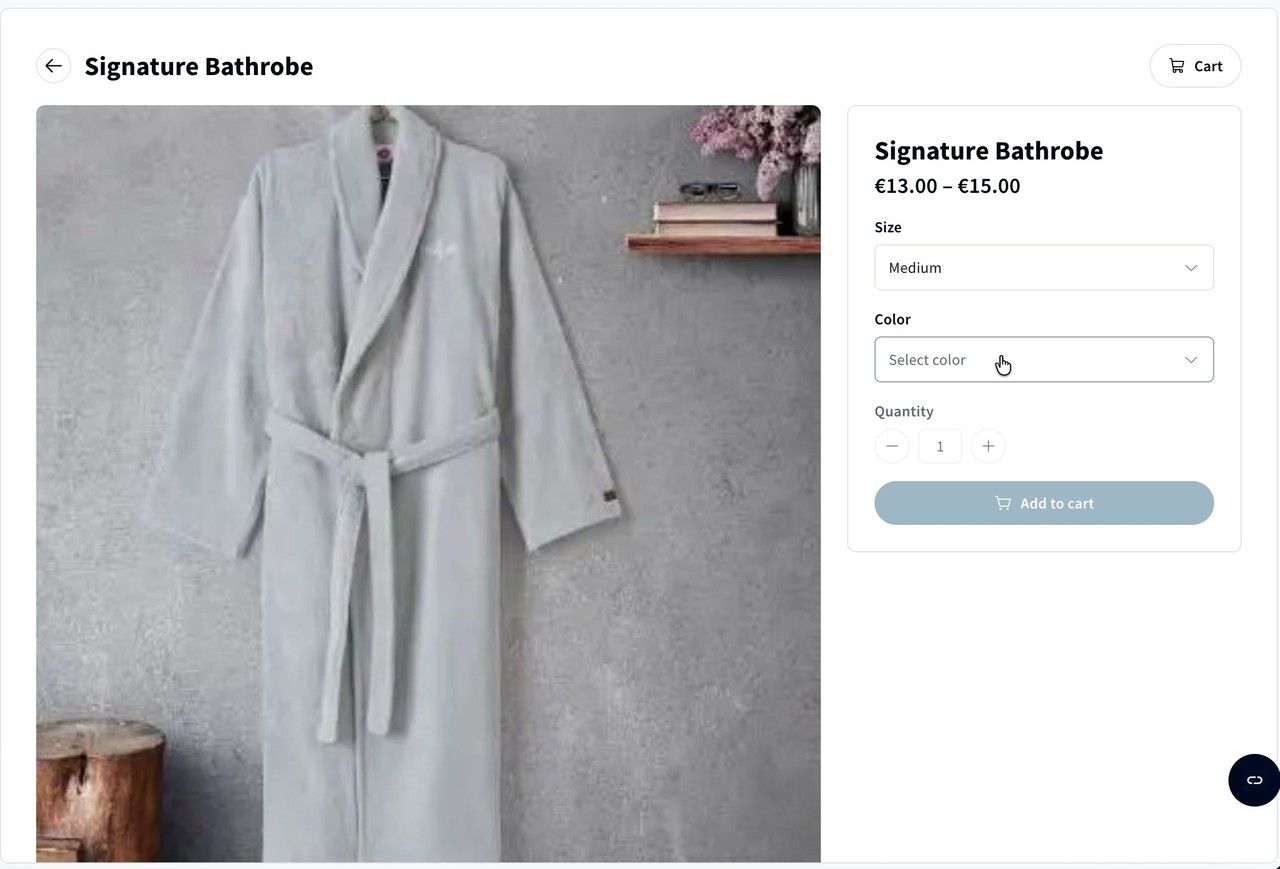
Choosing a size and colour.
- Click Add to cart. From here, checkout works exactly the same as for an experience.
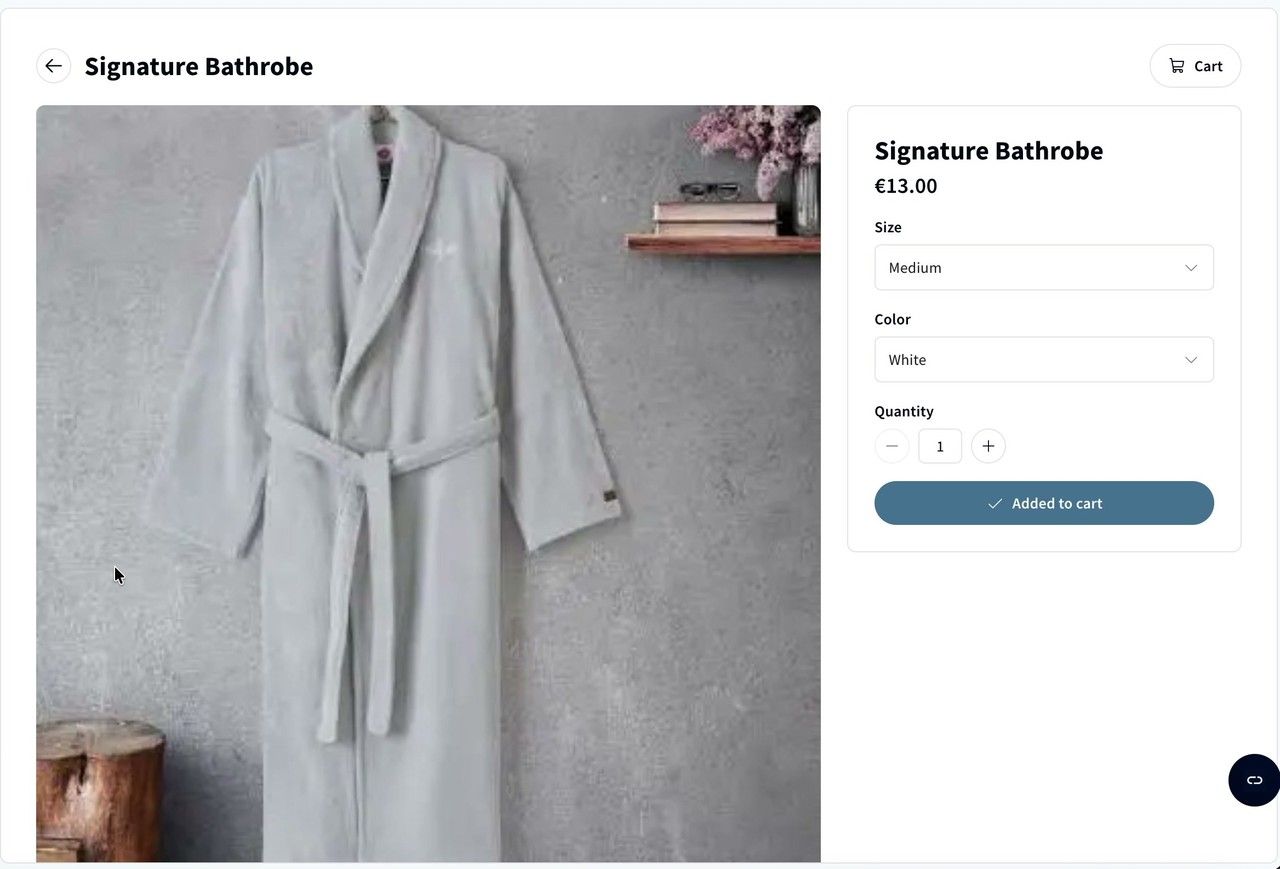
The product added to the cart.
9️⃣ Fulfil your sales
Retail items don't show up under Bookings like experiences do. Every purchase is listed under Retail → Sales instead, whether a guest bought it themselves or your team booked it or sent a payment link.
For each sale you can see the guest (and their room), the product, when it was ordered, its status, the total and the purchase code. Search by guest, product or purchase code, and filter by Fulfilment or Product type. By default the list is sorted by Needs action first, so sales waiting on you sit at the top.
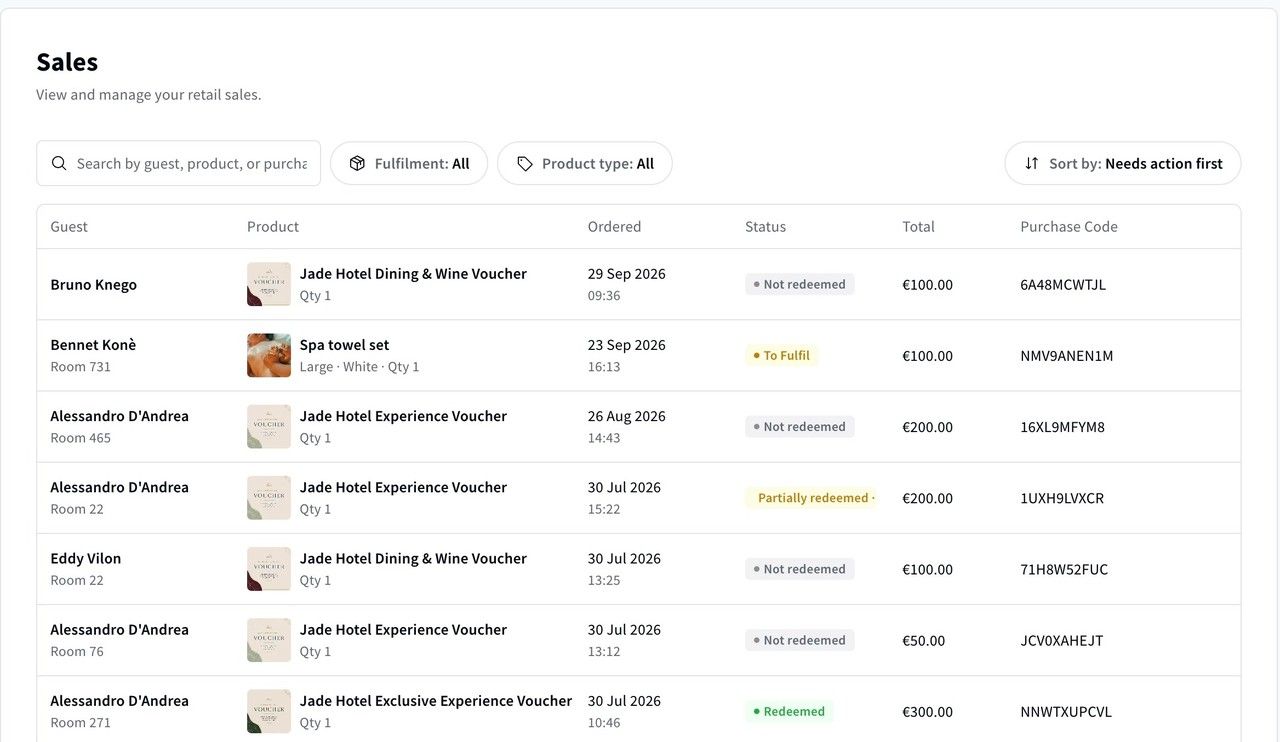
The Sales page, listing every sale.
Every new retail sale starts as To Fulfil. Once the guest has their item (left at reception for them, or delivered to their room), mark the sale as fulfilled.
- Set Product type to Products to see only retail items
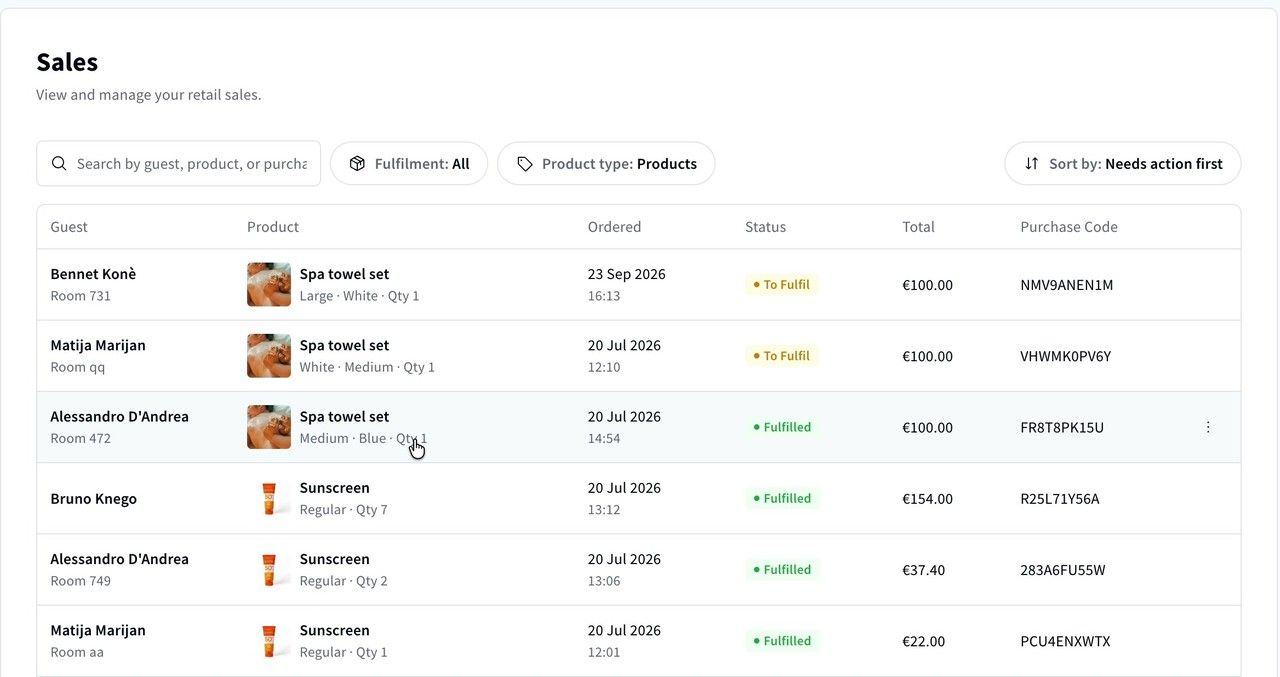
Sales filtered to retail items, showing To Fulfil and Fulfilled sales.
- Click a sale to open it, then click Mark as fulfilled. If the sale shouldn't go ahead, click Cancel item instead.
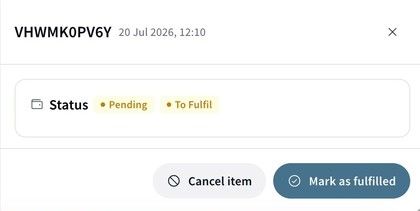
A sale waiting to be fulfilled.
- The status changes to Fulfilled
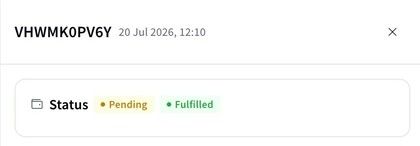
The same sale, now marked as fulfilled.